
So I was helping a friend set up accounting for their Shopify store the other day and they kept asking me about Dext Commerce. Specifically they wanted to know how to actually log in and what happens after they do.
It is one of those tools where the login part sounds simple but there are actually a few things you need to know before you start. So I put together everything in one place.
What is Dext Commerce
Before we talk about logging in it is worth knowing what you are actually signing into.
Dext Commerce is an accounting automation tool built specifically for ecommerce sellers. It connects to platforms like Shopify, Amazon, eBay, Etsy, PayPal, Stripe, and WooCommerce and automatically pulls your sales, fees, refunds, and reimbursement data into one place.
It was originally a separate product called Greenback. Dext acquired it and rebranded it as Dext Commerce, keeping all the core functionality but folding it into the larger Dext ecosystem.
The whole point of it is to save ecommerce sellers from manually exporting transaction reports and reconciling them in spreadsheets. Once connected it does that work automatically and pushes the data directly into QuickBooks or Xero.
Dext Commerce Login
This is where a lot of people get confused because Dext has multiple products and multiple login pages.
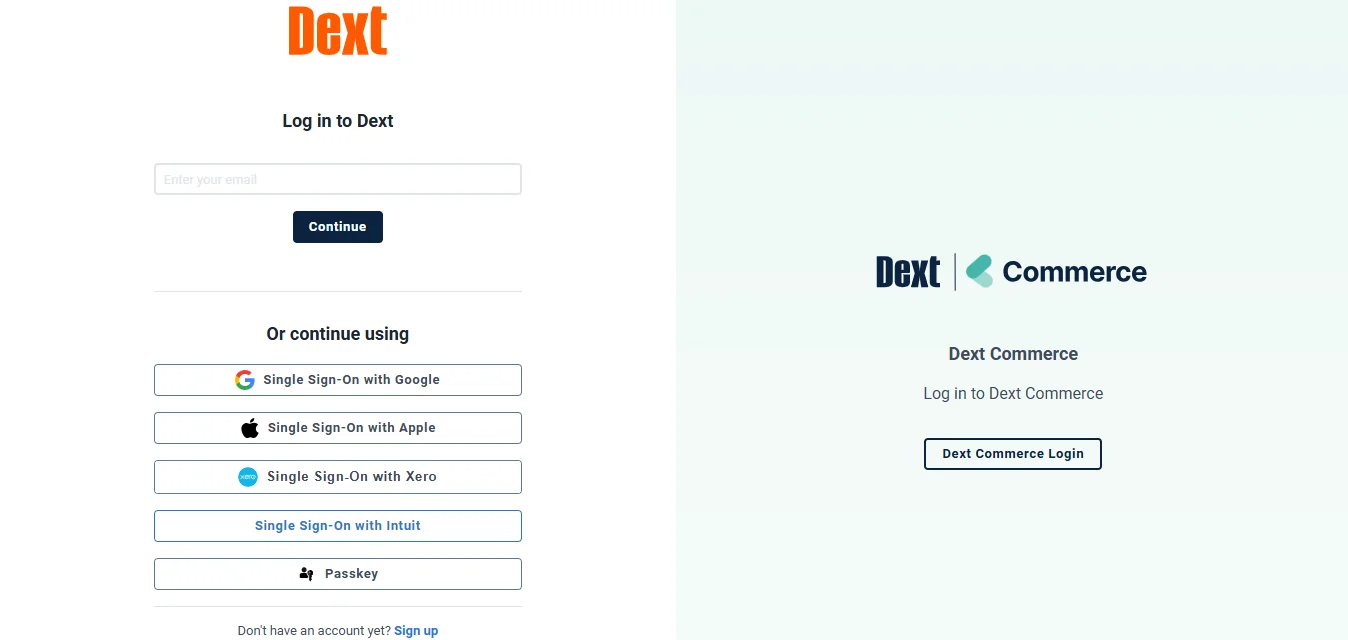
For Dext Commerce specifically, the login page is at app.dext.com. When you land on that page you will see options for Dext Prepare, Dext Precision, and Dext Commerce. You need to select the right one before entering your credentials.
If you were previously a Greenback user, your login details carried over when the rebrand happened. The old Greenback login at greenback.com now redirects you straight to the Dext Commerce sign-in page.
 How to Log In Step by Step
The process is straightforward once you know where to go.
Go to app.dext.com in your browser. You will see the main Dext login screen. Enter the email address and password you used when signing up. If you have multiple Dext accounts such as a personal one and a client one, make sure you are using the credentials for the correct workspace.
Dext supports Google sign-in and Apple sign-in as well so if you registered through either of those, click the relevant button instead of typing your password manually.
If you have two-factor authentication enabled, and it is worth enabling it, you will get a verification code sent to your registered email or phone. Enter that code and you are in.
Once inside you will land on your Dext Commerce dashboard where all your connected platforms and transactions are managed.
Connecting Your Ecommerce Platforms
After you log in for the first time this is where the real setup begins.
Go to Business Settings and then Connections. You will see a Sales Connectors section. Click the Connect button next to whichever platform you sell on and it will walk you through the authentication process.
Most platforms use one of two methods. Either you enter your username and password for that platform directly, or it takes you through an OAuth flow where you authorize Dext to access your account without sharing your actual password.
One important thing to note here. When you are connecting multiple accounts on the same platform, log out of your active session on that platform before connecting the next account. Just closing the tab is not enough. A proper logout prevents Dext from accidentally authenticating the wrong account.
After connecting, Dext will complete an initial sync and pull in your recent transactions. From that point it syncs automatically going forward.
Also Read: 3 Best WhatsApp CRM to Consider in 2026
Common Login Problems
A few issues come up regularly that are worth knowing about before they catch you off guard.
Wrong portal is probably the most common one. If you are trying to log into Dext Commerce but accidentally land on the Dext Prepare login, your credentials might still work but you will not see your Commerce data. Always make sure you are on the Commerce section.
Password errors are the usual suspect. Double-check for capital letters, extra spaces, and make sure you are using the email address you actually registered with. Use the Forgot Password option if you are unsure rather than guessing multiple times and locking yourself out.
Two-factor authentication delays happen when the verification code goes to spam. Check your junk folder before requesting a new code.
Account lockouts happen after too many failed login attempts. Wait a few minutes before trying again. If the account stays locked, Dext support can unlock it for you.
Browser issues can also cause problems sometimes. If the login page is not loading properly, clear your cache or try a different browser. Dext works best on updated versions of Chrome or Firefox.
Logging In on Mobile
Dext has a mobile app available on both Android and iOS and the login process works exactly the same as the web version.
Open the app, tap login, enter your email and password, go through 2FA if you have it enabled, and you are in. The mobile version is mainly used for capturing receipts and expenses on the go rather than managing Commerce connections, but everything is accessible from it.
What You Can Do After Logging In
Once you are inside Dext Commerce the main things you will be spending time on are managing your platform connections, reviewing synced transactions, setting up category mappings, and exporting data to your accounting software.
The mapping setup is worth spending time on properly when you first get in. You can tell Dext how to categorize different types of transactions automatically, sales, fees, refunds, so that when they sync to QuickBooks or Xero everything lands in the right place without you having to touch it.
There is also a Force Document Fetch option inside each connection if you think transactions are missing. This manually resyncs the account and usually resolves any gaps.
Commerce Lite vs Commerce Pro
If you are on the standard Dext subscription you get access to Commerce Lite which covers up to five ecommerce platforms. It handles the core features that most small sellers need.
Commerce Pro is the upgraded version for businesses that have grown past five platforms or need features like SKU-level analysis, custom mappings, and daily or monthly roll-ups. If you are regularly hitting transaction limits or spending too much time managing data, that is when the upgrade makes sense.
FAQs
What is the Dext Commerce login URL?
Go to app.dext.com and select Dext Commerce from the product options.
Is Dext Commerce the same as Greenback?
Yes. Greenback was rebranded to Dext Commerce after Dext acquired it. Your old Greenback login now redirects to Dext.
What platforms does Dext Commerce connect to?
Shopify, Amazon, eBay, Etsy, PayPal, Stripe, WooCommerce, and several others.
What accounting software does it sync with?
QuickBooks Online and Xero are the primary integrations.
What do I do if my login is not working?
Check you are on the right portal, verify your email and password, check spam for 2FA codes, and clear your browser cache.
Is my data secure on Dext Commerce?
Yes. Dext uses encrypted storage, is GDPR compliant, and supports two-factor authentication for added security.
Can I use Dext Commerce on my phone?
Yes. The Dext mobile app is available on Android and iOS with the same login process as the web version.