
My friend called me last week completely stuck. His accountant had set him up on this software for managing receipts and invoices, and he couldn't figure out where to even log in. He kept searching "Receipt Bank login" and getting confused because the name had changed. I walked him through the whole thing over the phone, and then figured I might as well write it all down properly for anyone else in the same situation.
Here's everything I found and everything we walked through together.
Wait, Is It Receipt Bank or Dext?
This is the part that confuses almost everyone who comes to this software for the first time. Receipt Bank was the original name of the platform. The company rebranded to Dext a few years back and the product is now officially called Dext Prepare.
Dext, formerly known as Receipt Bank, is a cloud-based accounting platform designed to help users capture, manage, and process financial documents automatically. It connects directly with accounting tools like QuickBooks, Xero, and Sage, reducing manual data entry and saving time.
So if someone told you to log into Receipt Bank, they meant Dext. Same product, same login, just a new name. I want to clear that up before anything else because it's the number one source of confusion I see.
 Where to Actually Log In
The login URL changed when the rebrand happened and a lot of old bookmarks people had saved were pointing to the wrong place.
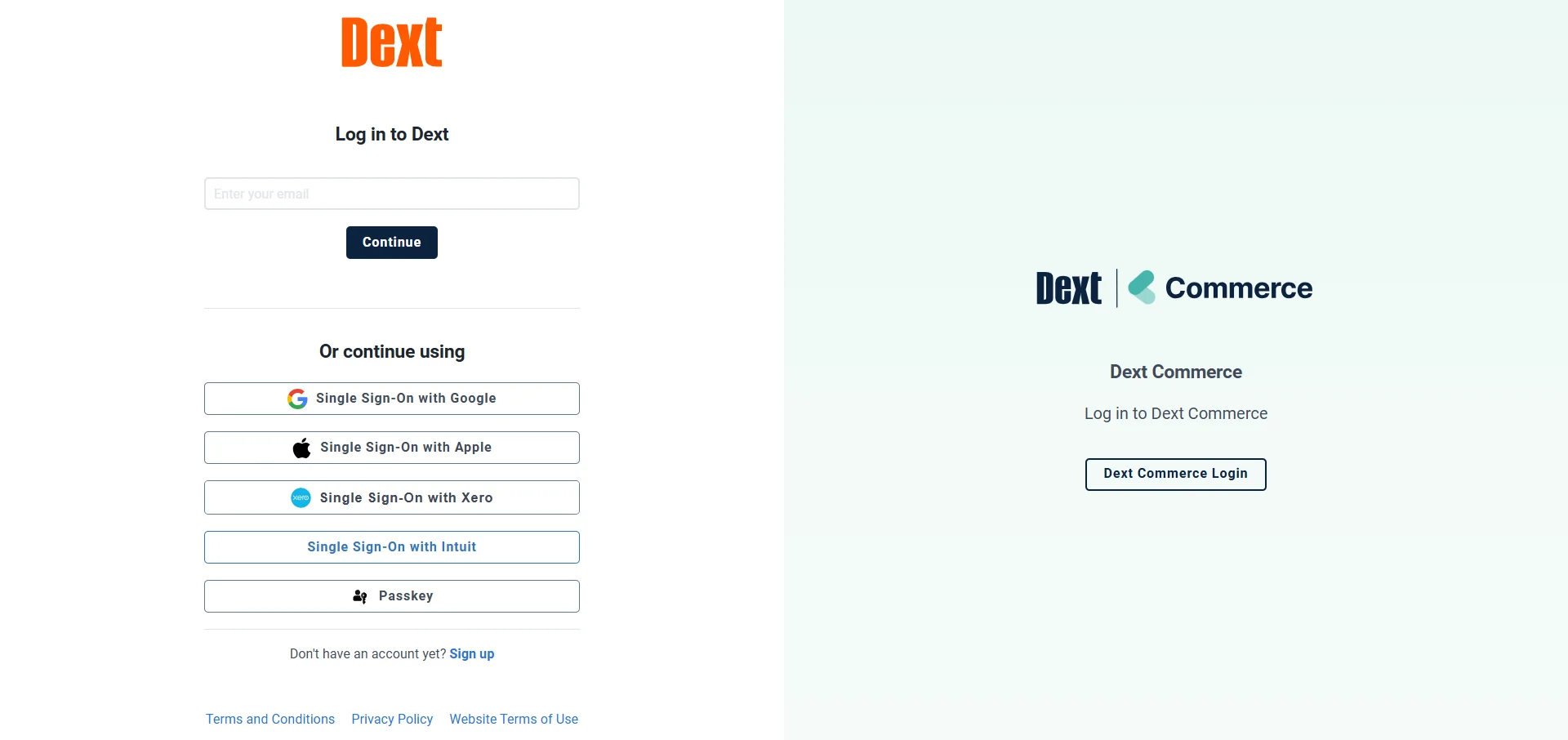
The correct login page right now is app.dext.com. That's it. Everything else is outdated and some of the old Receipt Bank URLs now just redirect you there anyway.
From the login page, you choose your region, then use the email and password you used when signing up for Dext. If you have multiple accounts, for example business and accounting, make sure you select the correct workspace before logging in.
If your accountant set up your account, they would have sent you an invite email when they added you. Simply click the link in that email and choose your own password to get started. Once you've done that, app.dext.com is where you go every time.
Logging In on the Mobile App
A lot of people actually use Dext more on their phone than their desktop because the whole point is snapping photos of receipts on the go. So let me break down the mobile login too.
You can download the Dext mobile app and then enter your email and password, the same as your web login. Once you're in, you can capture receipts using your phone camera and Dext automatically scans and stores them.
The app is available on both iOS and Android. Once you log in the first time it should stay logged in unless you actively sign out, which makes things much faster day to day.
The Dext mobile app also lets you switch between clients or organisations and manage multiple logins if you're working across different accounts. Useful if you're an accountant managing multiple clients under one app.
The Two-Factor Authentication Situation
Here is the part that trips people up the most right now. Dext has been rolling out mandatory two-factor authentication across accounts and if you haven't set it up yet, you're going to hit a wall at login at some point.
2FA has become mandatory for users with accounts integrated with Xero and is gradually being rolled out to all accounts. Once enforced on an account level, 2FA cannot be disabled. Every user who is part of the account needs to have it set up and use it for login.
From what I saw, you have three options for how to receive your verification code. You can use an authenticator app like Google Authenticator or Microsoft Authenticator, you can receive a text message via SMS, or you can get the code sent to your email.
The authenticator app method is the most reliable in my opinion because it doesn't depend on your phone having signal or waiting on an email to land. But all three work.
How to Set Up 2FA Before You Get Locked Out
I'd strongly recommend doing this proactively rather than waiting until Dext forces you to do it mid-login. Here's how it works.
Click your profile icon in the top right corner and select User Settings, then open the Security tab. From there you can enable your preferred 2FA method.
For the authenticator app option, you open your authenticator app, scan the QR code or enter the 16-digit setup key manually, then enter the 6-digit code from your app and click Enable. After that you'll receive 12 backup codes.
Save those backup codes somewhere secure. A password manager works well. I'm going to explain why those codes matter in a minute.
The Backup Codes Thing: Do Not Skip This
Here's the thing that I genuinely think people overlook and then regret later. When you set up 2FA, Dext gives you 12 one-time backup codes. These are your emergency access if you ever lose your phone or can't get the verification code.
To use a backup code, go to the Dext login page, enter your email and password, and on the verification screen select "Use a backup code." Enter one of your unused backup codes and click Verify to log in.
If you're locked out and no longer have access to your backup codes, you need to reach out to the support team at support@dext.com.
Each code can only be used once. Once you've used all 12, you'd need to regenerate new ones from your settings. Store them somewhere safe from day one and you'll never be stuck.
Keeping Your Device Trusted So You're Not Entering Codes Every Time
If you're logging into Dext on the same laptop or phone every day, entering a 2FA code every single time gets old fast. There's a way to avoid this.
When logging in with 2FA, you can select "Don't ask me for the code for 30 days" on trusted devices. This keeps you verified on that device for a month without needing to re-enter the code.
You can manage your trusted devices from User Settings under the Security tab.
One thing to know though: if Dext keeps asking for a verification code on the same browser, your browser may be clearing cookies when it closes. Make sure cookies and site data are allowed in your browser settings. That's usually the culprit when people say "it keeps asking me every time."
Fixing Login Problems: The Most Common Issues
Let me break this down for the errors people hit most frequently because there are a few recurring ones.
Wrong credentials. This sounds obvious but it happens constantly. Double check your email and password for typos and use the Forgot Password feature to reset your password if you're unsure of your credentials.
Account locked. After multiple failed login attempts, Dext may temporarily lock your account. Wait for the lockout period to expire, typically 15 to 30 minutes, or reset your password if you're unsure of your credentials. Contact Dext support to unlock your account if the issue persists.
Login page not loading or buttons not working. Outdated or incompatible browsers can prevent you from accessing the login page. Use a recommended browser like Google Chrome, Firefox, or Microsoft Edge. I'd also suggest clearing your cache before trying again.
2FA code not working. Ensure your registered mobile number or email is active and receiving messages. For authenticator apps, check that your phone's time is set to automatic because code mismatches are often a time sync issue.
Forgot Your Password? Here's the Exact Process
Quick and simple. Go to the Dext login page and select Forgot Password. Dext sends a reset link to your login email address.
Check your inbox, click the link, and set a new password. If the email doesn't show up within a few minutes check your spam folder. The emails occasionally land there depending on how your email filters are configured.
If you reset your password and still can't get in, that's when I'd go directly to support@dext.com and explain the situation. Their support team is responsive from what I've seen.
Managing Multiple Dext Accounts
This one comes up a lot for accountants and bookkeepers who are managing multiple clients. The good news is you don't need separate logins for everything.
Dext accounts can't be merged but you can merge login details to access all your accounts under one set of credentials. Go to User Settings, then Login Details, then Merge Logins.
On the mobile app, you can switch between clients or organisations and manage multiple logins all from the same app. Makes the whole workflow a lot smoother when you're juggling more than one account on a daily basis.
FAQs
What is the Dext Receipt Bank login URL?
The correct login address is app.dext.com. The old Receipt Bank URLs redirect there but it's worth updating your bookmarks to the new one.
Is Receipt Bank the same as Dext?
Yes. Receipt Bank rebranded to Dext. Your existing login credentials still work and nothing about your account changed.
How do I reset my Dext password?
Go to app.dext.com, click Forgot Password, and Dext will send a reset link to your registered email address.
Why is Dext asking me for a verification code every time I log in?
Your browser is probably clearing cookies on close. Go into your browser settings and make sure site data is allowed to be saved so Dext can remember your trusted device.
What do I do if I lose access to my 2FA method?
Use one of your 12 backup codes on the verification screen. If you don't have those either, email support@dext.com from the email linked to your account and ask them to temporarily disable 2FA.