
My neighbor teaches third grade and called me last week mid-crisis. Twenty-six kids, tablets out, first day using eSpark, and half the class couldn't get logged in. Some had QR codes, some were supposed to use Clever, and nobody knew which method was theirs.
We sorted it out in fifteen minutes once we understood how eSpark's login system actually works. Here's the complete guide so your first day goes smoother than hers did.
What Is eSpark?
eSpark is an online educational platform that helps teachers personalize learning for their students. It delivers assignments, activities, and video lessons based on what each student actually needs, letting kids learn at their own pace.
The platform covers reading, math, and writing through personalized lessons. It adapts to each student's level, shows what they need to learn next, and gives teachers a clear view of progress across the whole class.
Schools across the United States use it to strengthen classroom instruction through digital resources. Rather than spending hours manually scoring every assignment, an AI paper grader handles the heavy lifting so teachers can focus on instruction.
Because eSpark integrates with tools like Clever, it supports single sign-on and simplified login experiences in most schools. That integration is also where most of the login confusion comes from, which is exactly what we're solving today.
Who Can Use eSpark?
eSpark serves three groups, and each gets its own login path and dashboard.
Students in elementary and middle schools use it for lessons and quizzes. Teachers use it to assign work, monitor performance, and identify learning gaps. School administrators use it to track progress across entire classrooms and grades.
Knowing which group you're in determines which login page you need, so let's map that out clearly.
The Five eSpark Login Methods Explained
eSpark supports multiple login methods depending on what your school has set up. Here's the full picture.
Method | How It Works | Best For |
|---|---|---|
Google Login | Sign in with your school Google account | Schools on Google Workspace |
Clever SSO | One click from the Clever dashboard | Districts using Clever rostering |
ClassLink | Login through your ClassLink portal | ClassLink districts |
Username & Password | Credentials distributed by teachers | Schools without SSO |
QR Codes | Scan a personal code with the device camera | Young students on tablets |
Your school or district chooses which methods are active. Students usually see only one or two options based on that setup, which is why the method your friend uses at another school might not exist on your login screen.
How Students Do eSpark Login
Here's the typical student pathway from browser to dashboard.
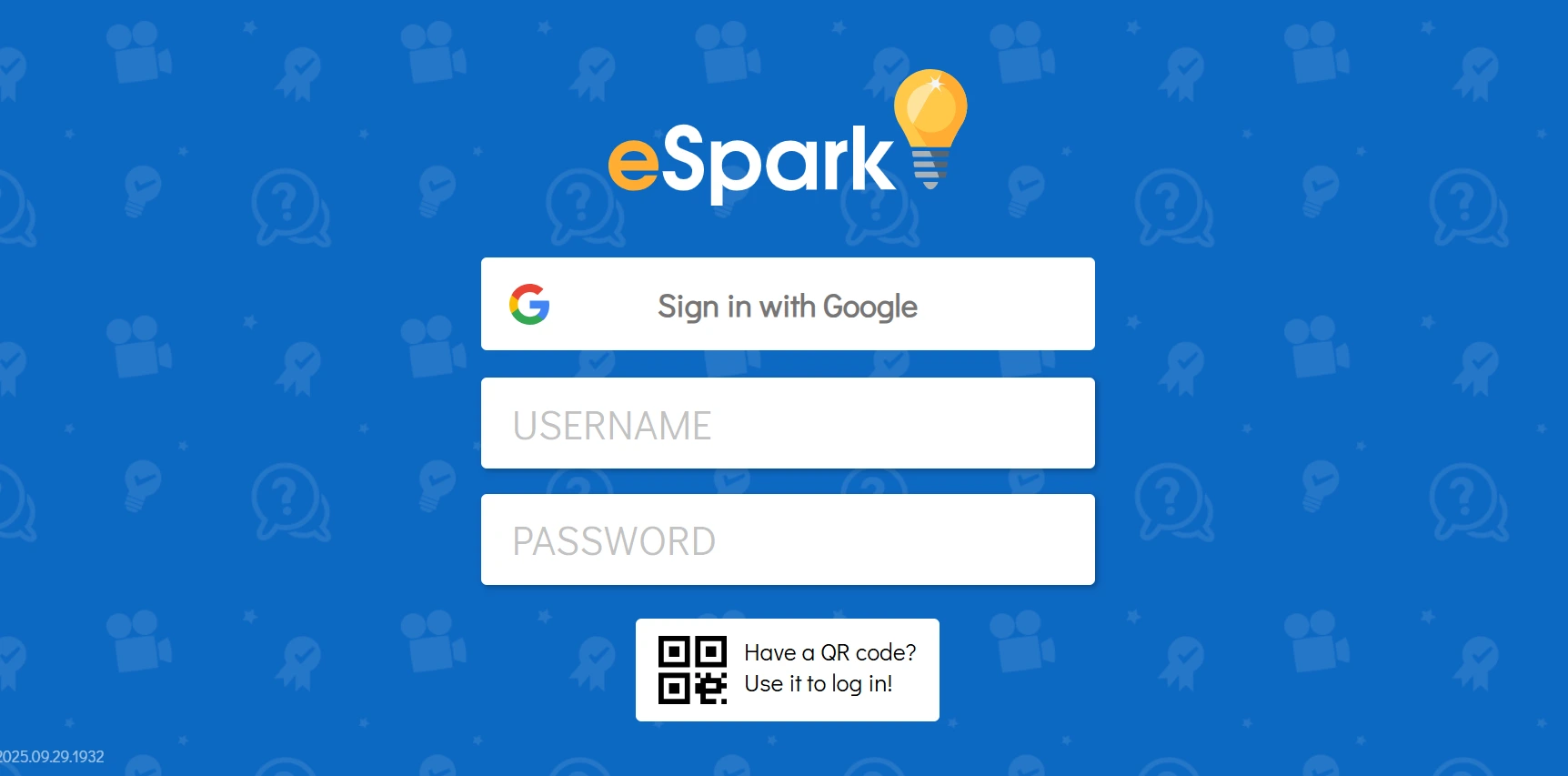 Step 1: Open the Login Page
Go to https://student.esparklearning.com/student/login in any browser, or simply visit espark.app for the shorter route.
Step 2: Choose Your Login Method
Pick whichever option your school uses: Google, Clever, ClassLink, or Direct Login. If you're not sure, your teacher knows which one your class was set up with.
Step 3: Sign In With Google or Clever
If using Google or Clever, select the option and follow the prompts. Make sure you're signed into your school account, not a personal one, because that mismatch causes most failed attempts.
Step 4: Or Enter Your Credentials
If your school uses direct login, enter your username or email and password exactly as your teacher provided them.
Step 5: Or Scan Your QR Code
For QR login, scan your personal code with the device camera or built-in scanner and you're in instantly. This is the fastest method for younger students.
Step 6: Land on Your Dashboard
Once logged in, your student dashboard shows your lessons, assignments, and progress badges ready to go.
One useful tip. If your school uses Clever rostering, students may log in automatically through Clever once their teacher has set up the class. Zero typing required.
How Teachers and Staff Do eSpark Login
The teacher path uses a completely different URL, which is the single most common mixup I see.
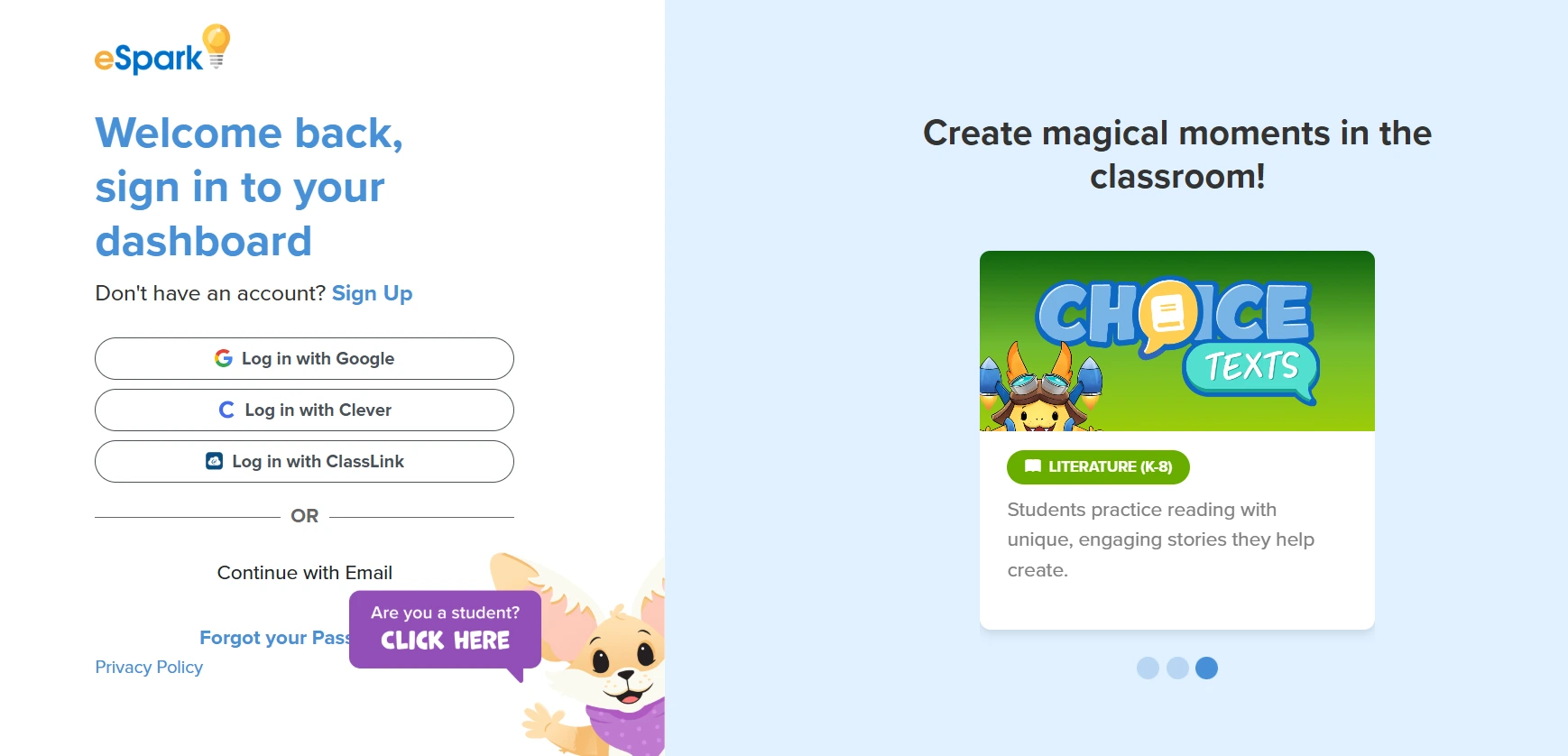 Step 1: Use the Teacher Portal
Go to the official teacher login page at https://mc.esparklearning.com/users/sign_in rather than the student page.
Step 2: Pick Your Method
Choose Google, Clever, ClassLink, or Email and Password, matching whatever your district configured.
Step 3: Enter Your School Credentials
Use your school email and password or continue with your connected SSO account.
Step 4: Access Your Dashboard
Once in, your teacher dashboard shows classes, lesson assignment tools, and progress tracking for every student.
Step 5: If Login Fails
Check that you're using your school email, try an alternate method like Clever or ClassLink, or reset your password with the Forgot Password option.
Step 6: New Teachers
If you're brand new to the platform, sign up at https://mc.esparklearning.com/teachers/signup using your school email address.
 eSpark Login via Clever: The Easiest Route
Many schools integrate Clever with eSpark specifically because it eliminates password problems entirely.
The process takes three steps. Go to your Clever Portal, click the eSpark icon, and you're redirected automatically to your dashboard without entering any extra credentials.
For classrooms of young students, this method saves genuine instructional time. No forgotten passwords, no typos, no tears. My neighbor's class switched fully to Clever after that first chaotic day and hasn't had a login problem since.
What to Do When Login Fails
Login errors follow predictable patterns. Here's the quick-fix reference table.
Problem | Solution |
|---|---|
Wrong login method selected | Try another method like Google or Clever |
Incorrect password or username | Ask your teacher or admin to reset credentials |
QR code not working | Check if it's valid or request a new one |
No login link visible | Check Clever or the school portal, ask admin to enable access |
System or server issues | Try again later or contact support |
Device compatibility problems | Use a supported browser or the latest app version |
One deeper fix worth knowing. If eSpark login doesn't work through Clever or Google, teachers may need to reimport students or check rostering settings on the admin side. The problem isn't always on the student's end.
Troubleshooting the Four Most Common Issues
Let me go one level deeper on the problems that generate the most support requests.
Forgotten Password
Click the Forgot Password link on the login page and follow the reset instructions. Teachers can also reset student credentials directly, which is faster for younger kids.
Invalid Login Credentials
Make sure you're entering the email and password linked to your school account specifically. Personal Gmail accounts logged into the browser are the silent culprit here more often than actual wrong passwords.
Browser Problems
Clear your browser cache or switch to Chrome or Edge. Outdated browsers cause login pages to load incorrectly or buttons to stop responding.
Google Login Issues
If Google sign-in fails repeatedly, ask your teacher or IT admin to confirm your email is correctly linked to eSpark on the rostering side. This pattern of SSO account mismatches shows up across every school platform, and we covered the same fixes in our Formative student login guide if your school runs multiple learning tools.
Features Available After eSpark Login
Once you're in, here's what each side of the platform actually offers.
For Students
Personalized lessons and quizzes matched to your level. Interactive videos and stories that keep things engaging. Progress badges for motivation, plus feedback after every completed lesson.
For Teachers
Detailed student progress reports across individuals and whole classes. Lesson assignment tools, automatic grading and tracking, and integration with Google Classroom and Clever for seamless workflow.
Benefits of Using eSpark
Beyond the login, here's why schools invest in this platform.
Personalized learning tailors lessons to each student's level so nobody gets left behind or held back. Fun, interactive content uses games, videos, and quizzes to keep engagement high.
Easy progress tracking gives teachers detailed charts for individuals or entire classes at a glance. Time savings come from automated assignment and grading, freeing teachers to focus on actual instruction.
Accessibility rounds it out. Students can access eSpark anytime, from school or home, on any internet-connected device.
eSpark Pricing Plans
eSpark is typically provided through school subscriptions rather than individual purchases. Here's the general structure.
Plan Type | What It Includes |
|---|---|
Free Trial | Schools can request a demo or trial before committing |
School Subscription | Pricing varies by student count and features |
District Plans | Advanced reporting, integrations, and dedicated support |
To get the latest pricing, visit https://www.esparklearning.com or contact their sales team directly, since education pricing is always negotiated at the school or district level.
Also Read: Langdock Review: Features, Pricing & Best Alternatives
Tips for a Smooth eSpark Login Every Time
Small habits prevent most login problems before they happen.
Bookmark the correct login page for your role, student or teacher, so you're never guessing URLs. Use the email or account your school provided consistently rather than mixing personal accounts in.
Keep credentials secure and never share them, even between classmates. Stick to your school's primary login method, whether that's Google or Clever, instead of switching between methods.
Keep your browser updated or use the latest app version. If QR codes are your method, keep them clean and visible for scanning. And always log out on shared devices to keep accounts safe.
eSpark Security and Data Privacy
Since this platform handles children's data, security deserves a direct mention.
eSpark follows strict data protection policies to keep student information safe. Schools using the platform comply with FERPA, the Family Educational Rights and Privacy Act, along with other privacy standards.
All login sessions are encrypted, and data sharing is limited strictly to authorized teachers and administrators. Parents concerned about student data can ask their school for the specific data agreement in place.
Why Schools Prefer eSpark
The pattern across schools using eSpark comes down to three things. It saves time, boosts student engagement, and delivers measurable academic growth.
The platform cuts teacher workload through automation, keeps students motivated with built-in rewards, and provides performance insights that make progress tracking simple instead of spreadsheet-driven.
That personalized learning approach lets teachers focus on what actually matters, helping students understand concepts and grow at their own pace.
Final Thoughts
The eSpark login process is genuinely simple once you know which method and which URL belong to you. Students go through student.esparklearning.com or espark.app, teachers through the mc.esparklearning.com portal, and Clever users skip passwords entirely.
If login trouble hits, the troubleshooting table above solves the overwhelming majority of cases, and your school IT admin handles the rest.
My neighbor's class now logs in through Clever in under a minute flat. The platform works beautifully once the front door opens. This guide makes sure it does.
FAQs
Which method is best for eSpark login?
Google or Clever SSO are the most reliable because they eliminate separate passwords entirely, though it depends on your school setup.
Can students use eSpark login on mobile devices?
Yes, login works through browsers on phones and tablets as well as the app.
What if my school doesn't use Clever or Google?
Your school will enable username and password or QR code login instead, so you can still access everything.
Do I need to log in every day?
Some sessions stay active while others expire after inactivity, so occasional re-login is normal.
Who do I contact for eSpark login help?
Start with your teacher, then your school IT department, and eSpark support for platform-level issues.