
My friend who teaches fifth grade texted me one morning right before her class started.
"I cannot get into Generation Genius. The kids are just sitting there."
I walked her through it in about three minutes. But it made me realize how many teachers and students hit this wall every single day because nobody ever explained the login process in a clear way.
So let me do that right now.
What Is Generation Genius and Why Do Schools Use It
Before we get into login steps, let me quickly explain what we are actually talking about.
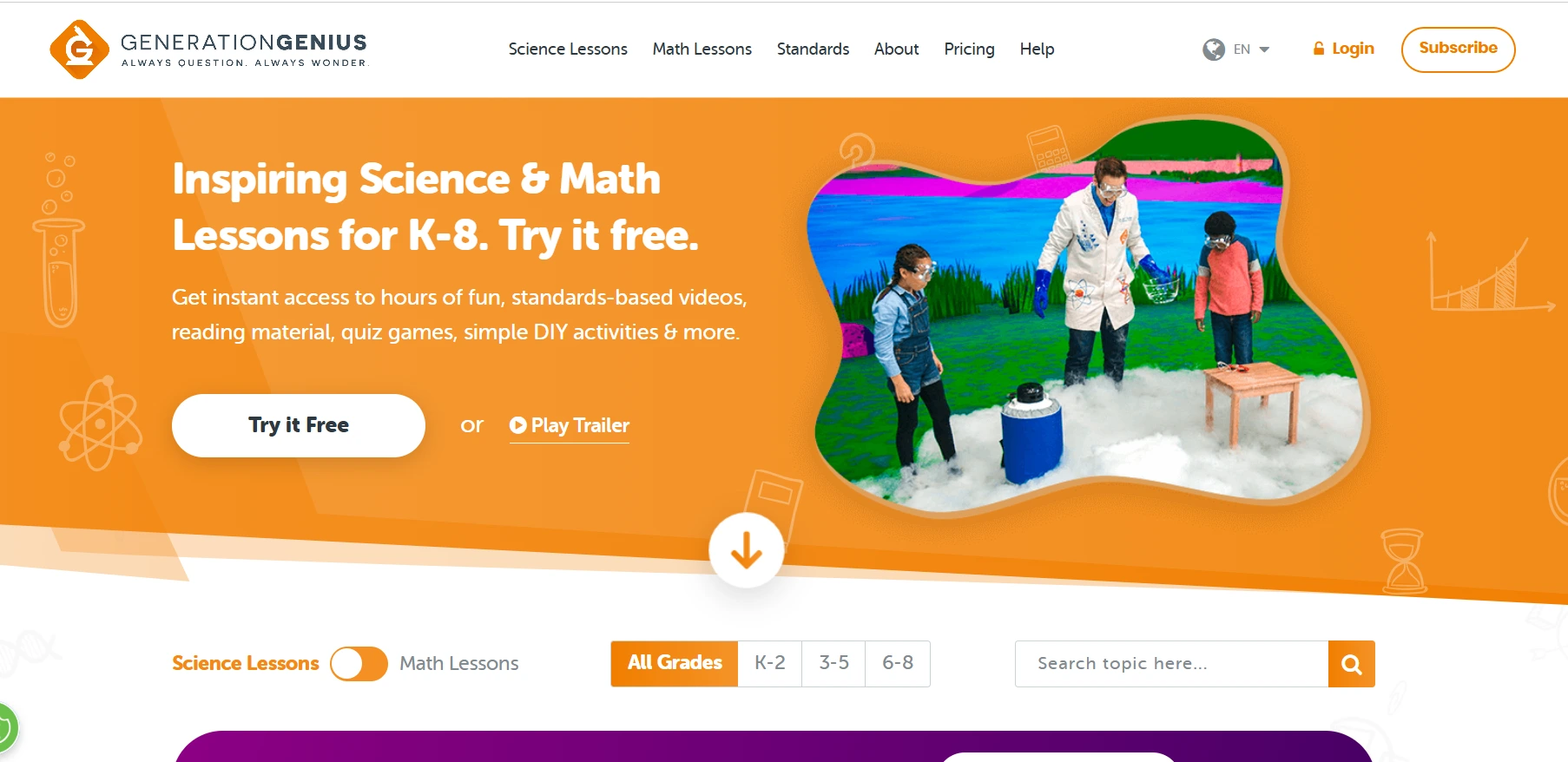
Generation Genius is a platform offering standards-based videos and lessons for K-8 science and math, created in partnership with the National Science Teaching Association.
Think high quality science videos, hands-on activity guides, quizzes, reading materials, and full lesson plans all in one place. It is built for classrooms but students can also use it from home which makes it useful for homework and remote learning days.
The reason so many schools pay for it is simple. Teachers get ready-to-use lessons that are already aligned to academic standards. Students get engaging visuals instead of a textbook. Everyone saves time.
But none of that works if you cannot get logged in. So let me fix that.
 How the Login Works: The Big Picture First
Here is something the original setup emails do not explain well enough.
There is no single way to log into Generation Genius. It depends on how your school set it up.
Some schools use Clever. Some use Google. Some use a direct email and password. Some give students a class code or a shared link that skips the login entirely.
If you are trying to log in and nothing is working, the first question to ask is which method your school actually set up. Because trying to log in with Google when your school uses Clever will fail every time no matter how many times you try.
Once you know your method, the actual login is quick.
Generation Genius Login for Students
Student login is designed to be simple because teachers do not want to spend twenty minutes getting a class of twelve year olds into a platform.
Open a browser and go to the school's provided link for Generation Genius, often via your district portal or through an SSO solution like Scalefusion OneIdP and Clever.
If your school uses Single Sign-On through Clever or Google, you will see a button for it right on the login page. Click Login with Clever or Login with Google and follow the prompts. If you are already signed into your school Google account on that device, it usually logs you in automatically.
If your school uses a direct username and password, enter the credentials your teacher or tech department gave you. These are often a first name plus a number, not a personal email.
Some teachers also share a direct class link. If you got a link from your teacher, just click it. It either logs you in automatically or asks you to verify with a quick code.
Once you are in you will land on your student dashboard where your assigned videos, worksheets, and quizzes are waiting.
 Generation Genius Login for Teachers
Teacher login has a few more options because teachers have more access and more responsibility for setting things up.
Go to your district portal or directly to the Generation Genius site. Choose your login method, Clever, Google Workspace, or direct credentials, whichever your school uses.
Once you are logged in your teacher dashboard gives you everything. You can assign videos to specific classes, share direct links with students, download activity guides and answer keys, and track how your class is progressing.
If you want students to access content without creating individual accounts, use the Generate Student Link option if your school has it enabled. You paste that link into Google Classroom or wherever you communicate with students and they click in without needing separate credentials.
First time logging in? Your school may ask you to enter a subscription code or complete a signup step. Check with your tech department before class, not during it.
If your school also uses other learning platforms, our eSpark login guide covers the same Google, Clever, and ClassLink login methods for students and teachers useful if you're managing access across multiple ed-tech tools.
When the Login Is Not Working: What to Actually Check
This is the part that saves you the most time.
Login failed error. Almost always means you are using the wrong method. You tried logging in with Google but your school set up Clever, or you are using a personal Gmail instead of your school email. Confirm which method your school uses and try again with that.
Student cannot find class or video. The teacher either shared the wrong link or has not assigned the content yet. Students should ask their teacher to resend the correct link or class code.
Page loads but videos are blocked. This is a school network issue. The firewall is blocking video content from the platform. Your IT department needs to whitelist the Generation Genius video domains. This is not something you can fix yourself.
Dashboard is completely empty. Either the subscription has not been activated yet or you are logged into the wrong account. Contact your school admin or tech supervisor to verify the subscription status.
Password reset not arriving. Check your spam folder. School email systems have aggressive filters. The reset email is probably sitting in junk mail.
How to Reset Your Password
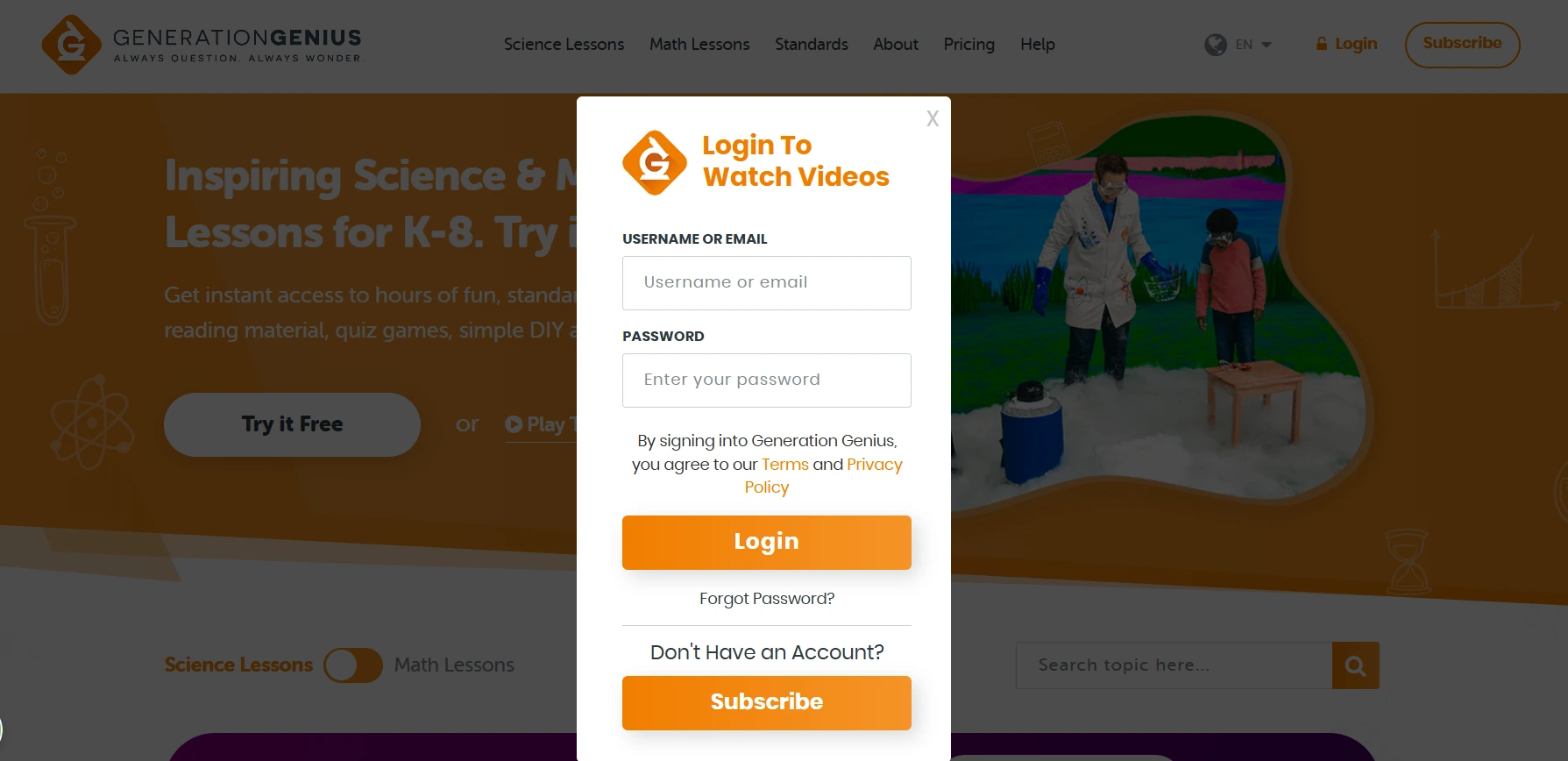
Go to the Generation Genius login page and click Forgot Password.
Enter the email address you used when you registered. Not a different email. The exact one you signed up with.
Check your inbox for a reset link and follow it to create a new password. If you do not see the email after a few minutes, check your spam folder before requesting another one.
If resetting the password still does not get you in, contact your school's tech team. The issue might be that your account was set up under a different email than the one you are trying.
Understanding SSO: Why It Matters for Schools
A lot of schools now use Single Sign-On and it makes life much easier once it is set up properly.
SSO means one login gets you into everything. Your school Google account or Clever account becomes the key for every platform the school subscribes to, including Generation Genius.
For students this means no remembering a dozen different passwords. For teachers it means less time troubleshooting and more time teaching. For IT departments it means centralized access control and easier security management.
If your school has SSO configured, always use the SSO button on the login page. Do not try to create a separate Generation Genius account. That separate account will not have access to your school's subscription and you will end up locked out of your class content anyway.
This is the same principle behind how modern software platforms handle authentication across enterprise and education environments. The way platforms process and verify user identity through these systems is actually more layered than most people realize. If you are curious about how software tracks and verifies user data at that level, our piece on what carrier data actually returns covers how applications handle identity signals behind the scenes, a surprisingly relevant read for anyone managing school software access.
What Generation Genius Actually Gives You Once You Are In
Now that we have the login sorted, here is what the platform actually contains.
Every topic starts with a video lesson. These are proper produced videos with real teachers, visual effects, and humor that actually keeps kids watching. Not someone recording their screen.
Each video comes with a printable hands-on activity guide so the lesson does not stop at the screen. Students can run actual experiments tied to what they just watched.
There are quizzes and discussion questions built in for every topic so teachers can check understanding without creating their own assessments. There are also reading materials written at the right level for each grade.
For teachers specifically, every lesson includes answer keys, standards alignment documentation, and full lesson plans. You can walk into class and run a complete science lesson without building anything from scratch.
If you're a music or fine arts director looking for a dedicated platform to manage student records, instrument inventory, and program finances, our Charms Office Assistant review covers everything you need to know including what happened to the platform and the best alternatives in 2026.
Topics cover physical science, life science, earth science, and engineering and technology, so the content spans the full range of what K-8 science teachers need across the year.
Tips That Actually Help Day to Day
Bookmark the login page. Searching for it every day costs time and sometimes lands you on the wrong page.
For teachers, set up your class links before the school year starts. Sharing them on day one means students never have to figure out the login themselves.
If your school uses Google Workspace, stay signed into your school Google account on your main browser. Generation Genius will recognize it and the login becomes one click.
Do not use a personal email to sign up for a school subscription. It creates a separate account that has no connection to your school's paid access and you will waste time trying to figure out why nothing loads.
For students accessing from home, use the same browser you use at school if possible. Your school Google account will already be signed in and the SSO flow will work the same way.
FAQs
How do I log in to Generation Genius as a teacher?
Go to the Generation Genius site, click Login, choose Teacher, and enter your registered school email and password or use your school's SSO option like Clever or Google.
How do students log in without creating an account?
Students use a teacher-provided class code or direct link. They visit the login page, choose Student, enter the code or click the link, and access content without needing their own email account.
What do I do if I forget my Generation Genius password?
Click Forgot Password on the login page, enter your registered email, and follow the reset link sent to your inbox. Check spam if you do not see it within a few minutes.
Can parents log in to Generation Genius?
Yes. Parents can log in using the email they registered with or an account set up by the teacher. Once in, they can view videos, quizzes, and activities assigned to their child.
Why is my Generation Genius login not working?
Most login failures come from using the wrong email, selecting the wrong user type, using the wrong login method for your school, or a network firewall blocking access. Check each of these before contacting support.