
My cousin handed me her iPhone last week and said "make it look less boring."
She had the default wallpaper, apps scattered everywhere, no widgets, no personality. It looked like a phone that had never been touched.
I spent about twenty minutes on it and by the end she genuinely did not recognize her own home screen. That is how much difference a few settings can make.
So let me walk you through exactly what I did, step by step, the same way I would explain it sitting next to you.
What Changing Your Home Screen Actually Means
When people say they want to change their home screen, they usually mean a few different things.
Some people want a new wallpaper. Some want widgets showing the weather or their calendar. Some want their apps rearranged or hidden entirely. Some want custom icons with a specific color theme.
All of that is possible. And since iOS 16, Apple also lets you set a completely different wallpaper for your Lock Screen versus your Home Screen, which opens up a lot more creative options than most people realize.
We are going to cover all of it.
One quick note before we start. This guide works on iOS 16, iOS 17, and later. If you are on something older some steps might look different. And if you want a custom photo as your wallpaper, save it to your Photos app first before starting.
Step One: Change the Wallpaper
This is the biggest visual change you can make and it takes under two minutes.
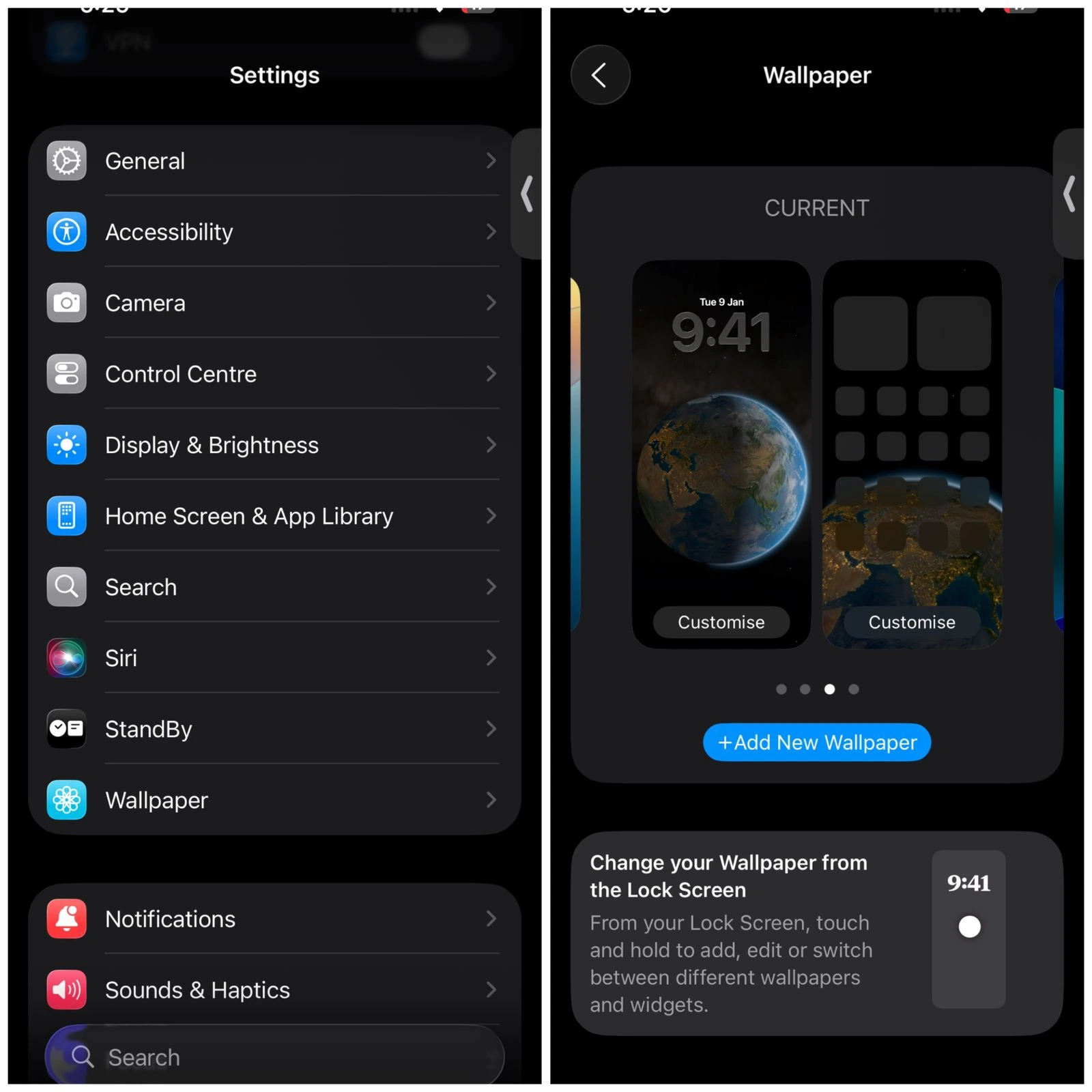
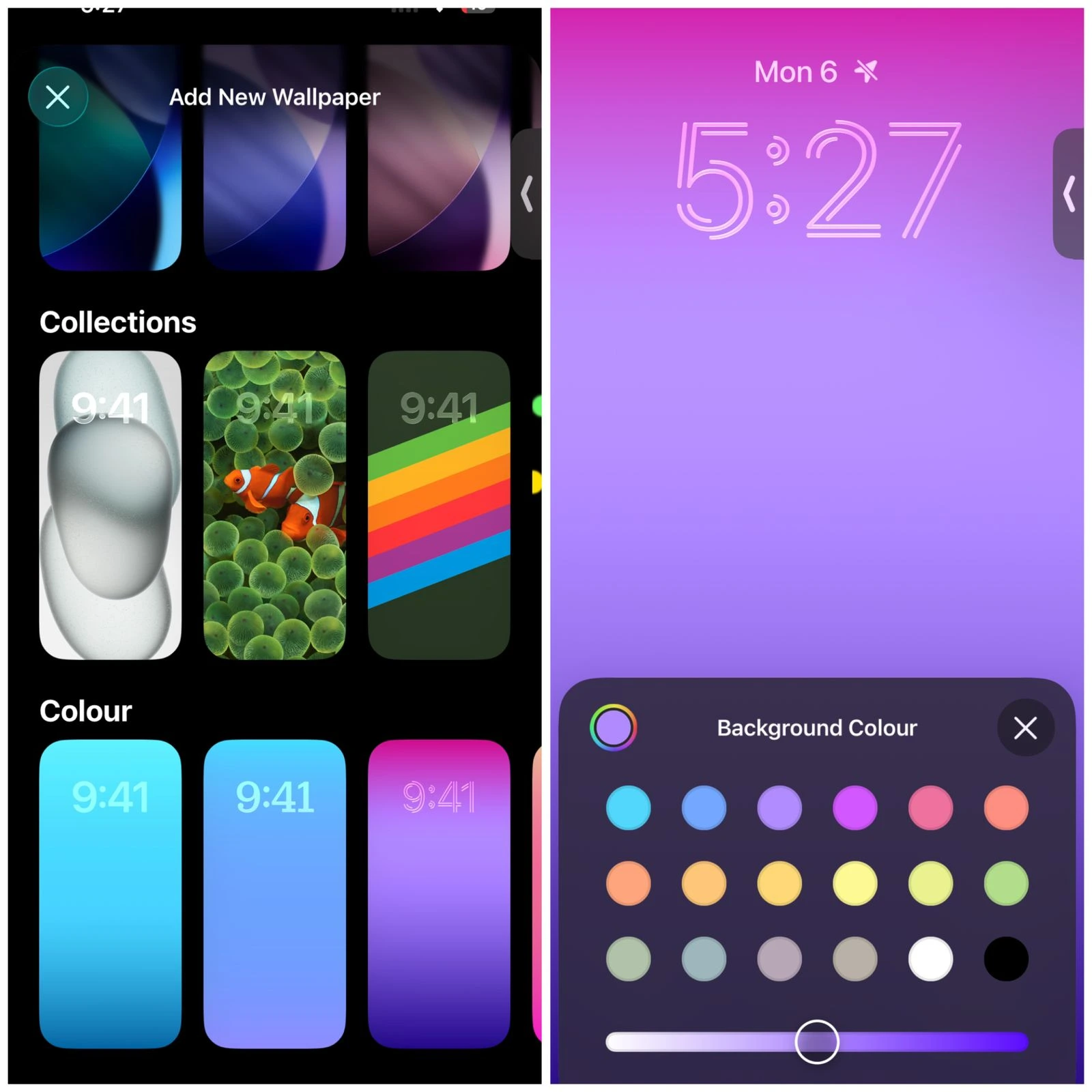
Open Settings and scroll down until you see Wallpaper. Tap it.
You will see a preview of your current Lock Screen and Home Screen wallpapers side by side. Tap Add New Wallpaper.
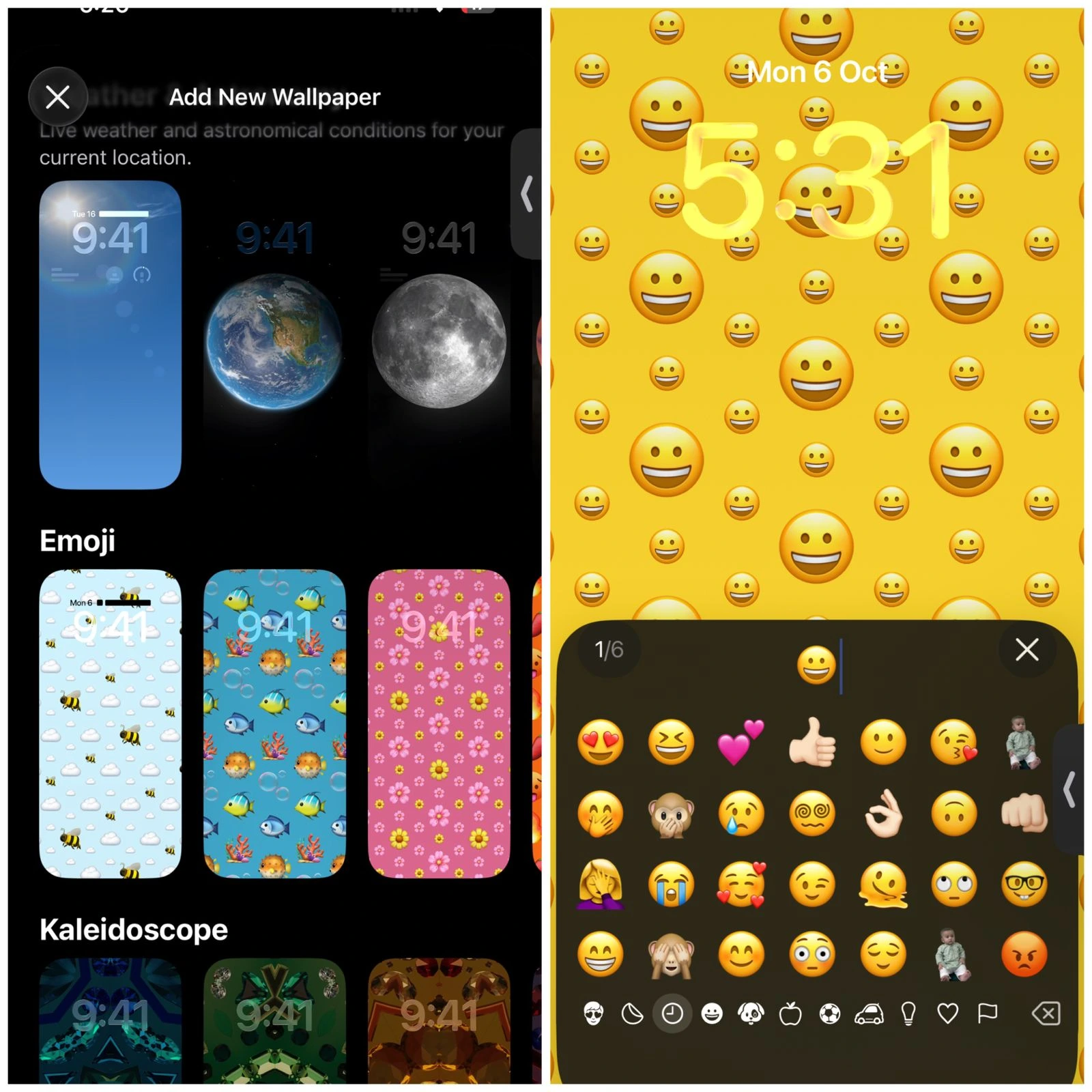
Now you get to choose your source. You can pick from your own Photos, use a Photo Shuffle that cycles through images automatically, choose a Live Photo, build something with Emoji, or pick from Apple's built-in collection.
Choose whatever you like and tap Add.
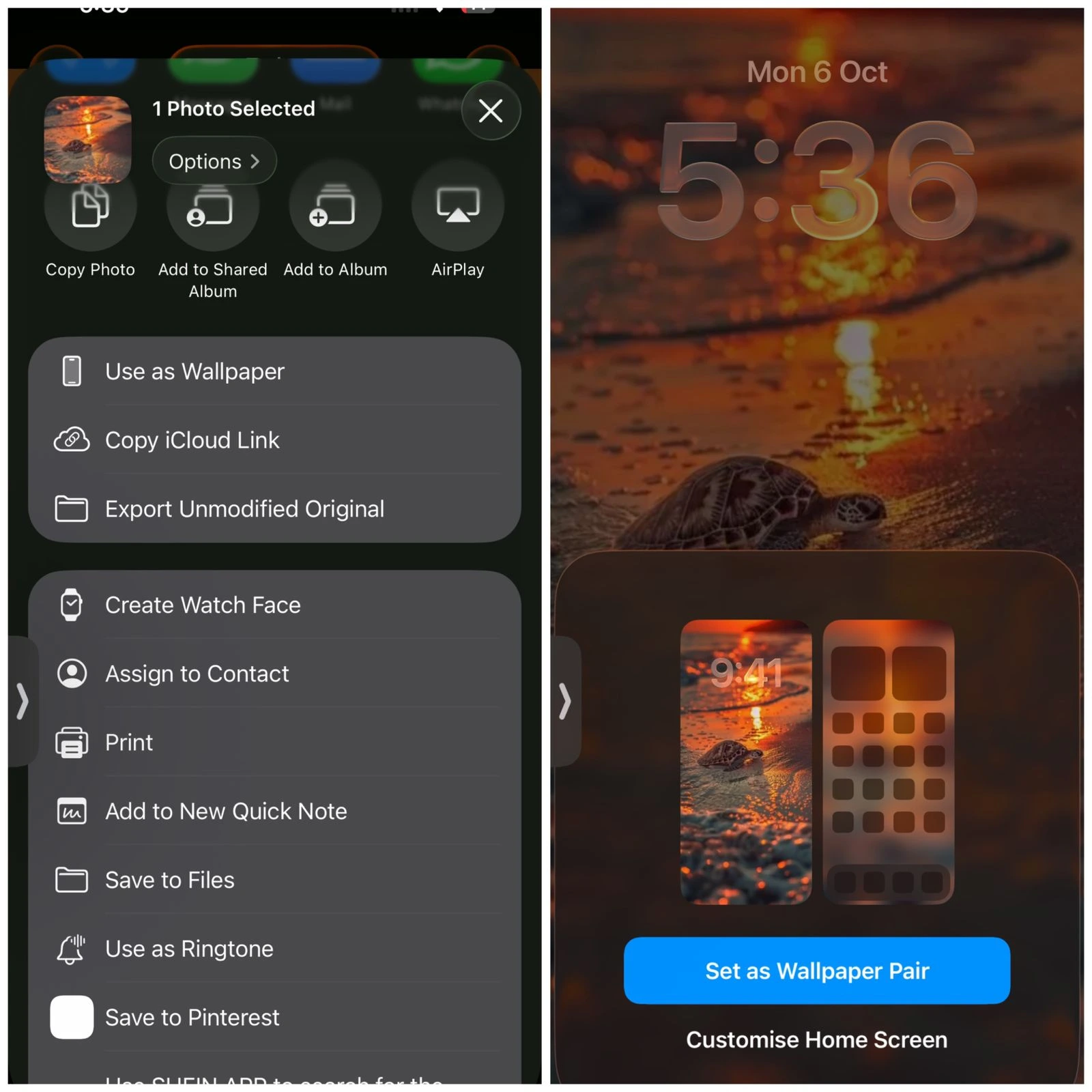
Here is where it matters. After you tap Add you get two options.
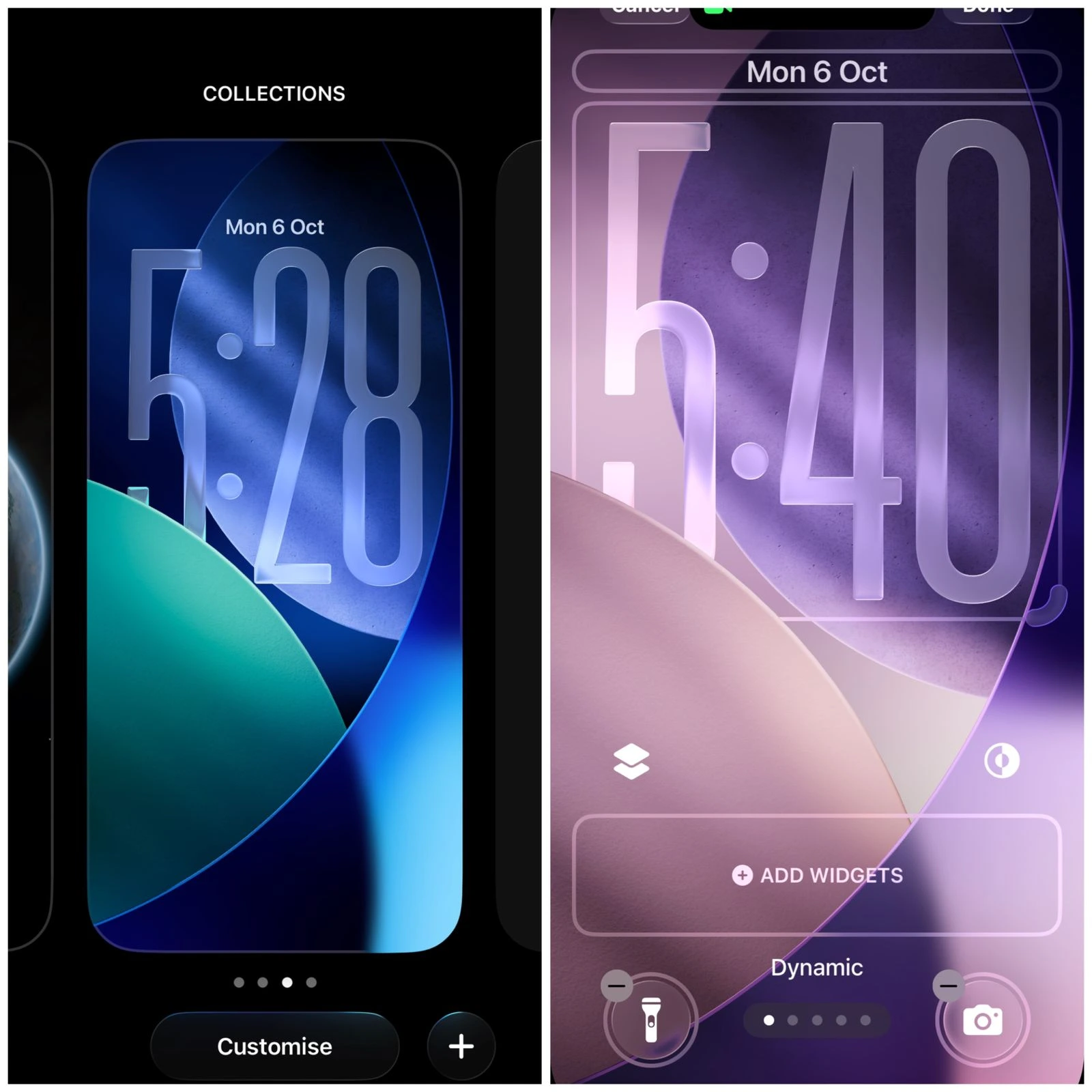
Set as Wallpaper Pair applies the same image to both your Lock Screen and Home Screen together. Customize Home Screen lets you set a different look specifically for your Home Screen only.
If you want them to match, go with the first option. If you want your Home Screen to have its own separate vibe, pick the second.
 Step Two: Customize the Home Screen Background Separately
If you chose Customize Home Screen you will now see three options for what your Home Screen background looks like.
Color or Gradient gives you a solid color or a smooth two-color blend. This is actually my favorite option when the Lock Screen already has a busy photo. A clean gradient behind the app icons makes everything look sharper.
Image lets you pick a specific photo or Apple wallpaper for just the Home Screen. You can pinch to zoom and drag to position it exactly how you want.
Blur adds a frosted glass effect over the image. If your icons are hard to read against a detailed photo, turning on the blur fixes that instantly.
Once you are happy with how it looks, tap Done.
 Step Three: Rearrange Your Apps
A new wallpaper with a messy app layout still looks messy. Let me show you how to clean it up.
Press and hold any app on your Home Screen until all the icons start wiggling. That is jiggle mode.
From here you can drag any app anywhere. Move it to a different spot on the same page. Drag it to the edge of the screen to move it to the next page. Or drag one app directly on top of another to automatically create a folder.
Folders are useful for apps you do not use daily but still want to keep. I usually make one folder called Tools and dump everything in there that I open maybe once a month.
When you are done arranging, tap Done in the top right corner.
 Step Four: Add Widgets
After tapping Customize Home Screen, you’ll see options such as:
Color / Gradient — pick a solid or gradient background
Image — use a photo or one of Apple’s images
Blur / Depth Effects — you can blur or soften the background so your app icons stand out
Once happy, tap Done to save.
This is the part most people skip and it makes the biggest difference to daily usability.
Widgets show you live information without opening an app. Weather, battery level, calendar events, news headlines, notes reminders. All of it visible the moment you look at your screen.
Press and hold an empty area on your Home Screen until the icons start wiggling. Then tap the plus sign in the top left corner.
You will see a list of every app that supports widgets. Scroll through or search for the one you want. Tap it, swipe through the size options, and tap Add Widget.
After adding it you can drag it just like an app to position it exactly where you want. Tap Done when finished.
I usually put a medium-size calendar widget at the top of my first Home Screen page. It shows my next few events without me ever opening the Calendar app. Huge time saver.
 Step Five: Hide Home Screen Pages You Never Use
If you have accumulated pages of apps you rarely touch, you can hide those entire pages without deleting anything.
Press and hold the Home Screen until jiggle mode activates. Then tap the row of dots at the very bottom of the screen. That is the page indicator.
You will see thumbnail previews of every page. Uncheck any page you want to hide. The apps are not deleted, they just move to the App Library which I will cover next.
Tap Done. Your Home Screen immediately becomes cleaner.
You can bring those pages back any time by repeating the same steps and re-checking them.
 The App Library: Your Secret Storage
Swipe all the way left past your last Home Screen page and you land in the App Library.
Every app on your iPhone lives here automatically sorted into categories like Social, Productivity, Utilities, and Entertainment. You can also search for any app by name using the search bar at the top.
The useful thing about the App Library is that you can remove apps from your Home Screen without uninstalling them. The app still exists and still works, it just lives in the Library instead of taking up space on your visible pages.
To remove an app from your Home Screen without deleting it, press and hold the app icon, tap Remove App, then choose Remove from Home Screen. It disappears from your pages but stays available in the App Library.
This is honestly how I keep my Home Screen clean. Only my ten most-used apps stay on the main page. Everything else lives in the Library.
Custom App Icons: The Extra Mile
This one takes more effort but if you want a specific visual theme this is how you do it.
Open the Shortcuts app. Tap the plus sign to create a new shortcut. Tap Add Action, search for Open App, and select the app you want to give a custom icon.
Tap the three dots in the top right corner and select Add to Home Screen. Tap the small icon next to the shortcut name and you can choose any photo from your library as the icon image.
Name it whatever you want and tap Add.
The shortcut now appears on your Home Screen with your custom image as its icon. The actual app still exists too, so you might want to hide the original in the App Library to avoid duplicates.
A lot of people use this to create an aesthetic Home Screen where every icon is a specific color or fits a specific style. It takes about thirty minutes to do a full set but the result looks really clean.
Troubleshooting: Common Issues I Actually Ran Into
Cannot change only the Home Screen. Make sure you are tapping Customize Home Screen and not Set as Wallpaper Pair. The pair option locks both screens to the same image.
Wallpaper looks pixelated. You need a high-resolution image. Low-res photos that look fine in your camera roll get stretched across the full screen and the quality shows. Use images that are at least 1170 x 2532 pixels for modern iPhones.
App icons are hard to see against the wallpaper. Turn on the Blur effect in the Home Screen customization menu. Alternatively switch to a simpler wallpaper. Busy detailed photos with lots of colors always compete with app icons visually.
Did not see the option for separate Lock Screen and Home Screen wallpapers. This feature requires iOS 16 or later. Check your iOS version in Settings, General, About. If you are on an older version you will need to update.
Why This Actually Matters Beyond Looking Nice
Here is something worth thinking about.
How your Home Screen is organized affects how you use your phone. Apps you can not find easily, you stop using. Information you have to dig for, you check less often.
A well-organized Home Screen with the right widgets puts your most important information front and center. Calendar events. Weather. Battery. Whatever you actually care about seeing throughout your day.
I look at it the same way we think about software interface design here at SoftwareXP. The layout either helps you or gets in your way. Your phone's Home Screen is the same thing. Getting it right means your phone works better for you, not just looks better.
If you are interested in how devices manage what loads and what runs in the background at a deeper level, our breakdown of what happens when you power on a computer explains the startup process that every device runs before you even see the home screen. Different device, same idea about how hardware and software communicate from the moment you turn something on.
Best Practices Worth Following
Use high resolution images. Anything that looks sharp in your camera roll can look blurry stretched across a phone screen if the resolution is not there.
Test icon visibility before committing. Set the wallpaper, go back to your Home Screen, and check if you can read every app name and identify every icon clearly. If you cannot, change the wallpaper or turn on blur.
Keep your first page minimal. The first page should only have what you use every single day. Everything else belongs on page two or in the App Library.
Change it up every few weeks. Your phone should not feel stale. Swapping the wallpaper takes two minutes and makes the whole device feel fresh again.
Match the wallpaper to your Lock Screen intentionally. Either make them a matching pair for a cohesive look, or deliberately contrast them so switching between Lock Screen and Home Screen feels like two different experiences.
FAQs
How do I change my Home Screen on iPhone?
Go to Settings, tap Wallpaper, tap Add New Wallpaper, pick your image, then tap Customize Home Screen to apply it only to the Home Screen.
How do I change the Home Screen without changing the Lock Screen?
When setting a new wallpaper tap Customize Home Screen instead of Set as Wallpaper Pair. That keeps your Lock Screen separate.
Can my Lock Screen and Home Screen have different wallpapers?
Yes, on iOS 16 and later you can set completely different wallpapers for each. Choose Customize Home Screen during wallpaper setup to do this.
Why do my app icons look hard to see against the wallpaper?
Your wallpaper is too busy or too similar in color to your icons. Use the Blur option in Home Screen customization or switch to a simpler background.
How do I remove apps from my Home Screen without deleting them?
Press and hold the app, tap Remove App, then choose Remove from Home Screen. The app moves to your App Library and stays fully usable.