
My friend Omar bought a used laptop last month and the thing wouldn't boot. Blank screen, no Windows logo, nothing. He called me panicking saying he thinks the hard drive is dead. I asked him one question. Did anyone mention anything about the bootloader being corrupted?
He had no idea what a bootloader even was.
I explained it to him over the phone in about five minutes and he understood it completely. Here's that same explanation, written down properly.
The Simple Version First
Before anything technical, here's the plain English version.
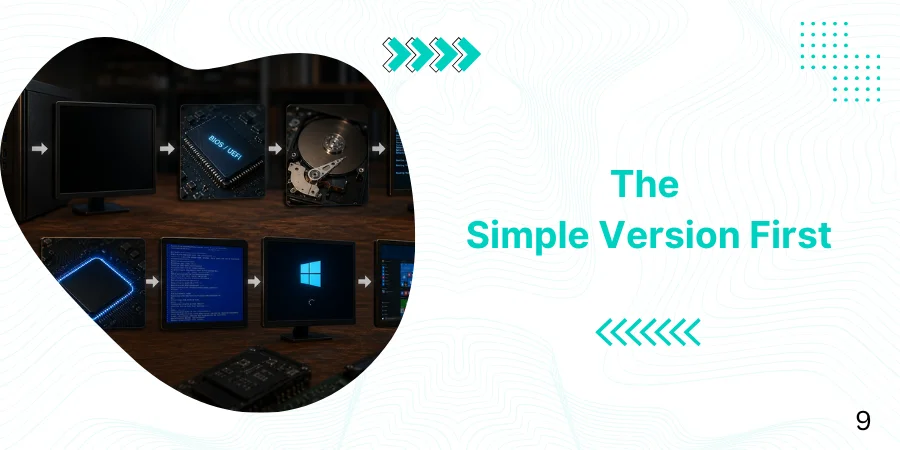
When you press the power button on your computer, the machine wakes up completely blank. There are no programs running. The screen is dark. The operating system isn't loaded yet. Nothing is happening except electricity moving through hardware.
The bootloader is the tiny program that bridges that gap. When turned on, a computer has a clear state. There are no programs in its memory and its components cannot be accessed. A bootloader helps to load the operating system or runtime environment to add programs to memory and provide access for components.
Think of it like the ignition in a car. The engine doesn't start itself. Something has to trigger the startup sequence. The bootloader is that trigger for your computer.
 Where the Bootloader Lives
Here's the thing most people don't know. The bootloader isn't stored the same way your apps and files are.
A bootloader is usually stored in the first sector of the bootable device. This makes the process much quicker and more efficient for the BIOS as it only has to read the Master Boot Record, which is the first sector.
That first sector is called the Master Boot Record or MBR. It's a tiny reserved space at the very start of your storage drive that holds the instructions the computer needs to begin starting up.
On modern systems using UEFI instead of legacy BIOS, the bootloader lives in a dedicated EFI System Partition instead. Same concept, different location.
How the Bootloader Actually Works Step by Step
Let me walk through what happens from the moment you press power.
Step One: Power On and Hardware Wake-Up
The moment you press the power button, electricity flows to every component. CPU, RAM, storage, everything gets a signal to initialize.
At this point the RAM is completely empty. As the main memory of the system is volatile it won't have any content present in it. In order to start the execution, the initial instructions are fetched from non-volatile memory called ROM, and this initial set of instructions is called BIOS.
Step Two: BIOS or UEFI Takes Over
BIOS stands for Basic Input Output System. UEFI stands for Unified Extensible Firmware Interface. Both do the same core job but UEFI is the modern version found on most computers made after 2012.
BIOS is a compact program that will find the bootable device present in the system such as a floppy disk, hard disk, or CD. Once the bootable device is found, BIOS searches for the Master Boot Record which contains the bootloader. If the MBR is found, BIOS will load the bootloader present in it.
Step Three: The Bootloader Loads
When we start the system, all the hardware components receive the power signal and get initialized. Now BIOS reads the instructions and based on the instructions BIOS will look for a bootable device. Once the bootable device is found, the BIOS loads the bootloader. The bootloader will load the operating system into memory. This entire process is called booting.
Step Four: The Operating System Takes Control
Once the bootloader has loaded the OS kernel into memory, its job is finished.
From here the bootloader takes the control of the CPU and loads the operating system into the main memory. Once the operating system is loaded into the main memory it takes the control of the entire system.
Windows starts. Or macOS. Or Linux. Whatever OS is installed takes over completely and the bootloader steps back.
Primary vs Secondary Bootloaders
Here's something that surprises most people. There isn't always just one bootloader doing all the work.
Examples of first-stage bootloaders include BIOS, UEFI, coreboot, Libreboot, and Das U-Boot. Second-stage boot loaders, such as GNU GRUB, rEFInd, BOOTMGR, Syslinux, and NTLDR, are not themselves operating systems, but are able to load an operating system properly and transfer execution to it.
Think of it like a relay race. The first-stage bootloader is small, fast, and has one job: load the second-stage bootloader. The second-stage bootloader is more capable and handles the actual OS loading.
There are systems that have a primary bootloader that is very small in size and whose only work is to load the secondary bootloader. Once the secondary bootloader is loaded it will be responsible to load the operating system.
This two-stage setup exists because the first sector of a drive is only 512 bytes. That's a tiny amount of space. A full-featured bootloader can't fit there so a minimal first-stage loader handles the initial handoff to something more capable.
BIOS vs UEFI: What's the Difference
You've probably heard both terms and wondered which one matters for you.
BIOS is the legacy system. It's been around since the early days of personal computing. It works with MBR partitioning and has a 512-byte limitation on that first sector. Simple, reliable, but old.
UEFI is the modern replacement. UEFI is a mini operating system that loads the bootloader in the memory before it executes additional operational routines. The UEFI program is permanently located on a memory chip on the motherboard meaning it is retained even when there is no power. Not in Hall of Fame
UEFI also introduced Secure Boot, which is a feature worth understanding.
What Secure Boot Does
The purpose of Secure Boot is to improve security. Parts of the UEFI firmware, the bootloader, and the operating system kernel must be verified before starting up. The components are verified using cryptographic digital signatures in the signature database of the UEFI firmware. The system boot may be canceled if the security check is not passed.
In plain terms: Secure Boot checks that the bootloader hasn't been tampered with before letting it run. If something malicious has modified the bootloader, Secure Boot stops the startup and prevents a compromised system from loading. This is a form of pre-execution verification, but Runtime Monitoring takes a different approach by tracking threats after the system has already started up.
Bootloaders on Android and Mobile Devices
Here's where it gets interesting for phone users.
A bootloader is a vendor-proprietary image responsible for bringing up the kernel on a device. The bootloader guards the device state and is responsible for initializing the Trusted Execution Environment and binding its root of trust. The bootloader also verifies the integrity of the boot and recovery partitions before moving execution to the kernel.
Android bootloaders are typically locked by manufacturers. That lock means the phone will only load software that the manufacturer has approved. Unlocking the bootloader removes that restriction and allows custom software like rooted Android builds or alternative operating systems to be installed.
The trade-off is security. A locked bootloader prevents unauthorized software from running. An unlocked one gives you more control but removes that protection layer.
Bootloaders in Embedded Systems
Here's something beyond just your laptop and phone that matters a lot in 2026.
Embedded systems are the computers inside things you don't think of as computers. Smart thermostats, car dashboards, medical devices, industrial controllers. Every one of them has a bootloader.
Embedded systems don't have a BIOS that could initiate the booting process. The bootloader in embedded systems fills the role of the BIOS, meaning that it's the first code that is run when such a device is turned on.
Nowadays most bootloaders include a type of communication interface like UART, USB, Ethernet, or even Bluetooth or Wi-Fi that enables quick and seamless software updates, hotfixes, or debugging.
That's why your smart TV can receive a firmware update overnight. The bootloader on that device is capable of receiving new software over the network and updating itself without you needing to plug anything in.
What Happens When a Bootloader Gets Corrupted
Back to Omar's laptop for a second. Here's what actually happens when the bootloader breaks.
The BIOS powers on, looks for the MBR or EFI partition, finds corrupted or missing data there, and stops. There's nothing to hand control over to. The screen stays blank or shows an error message like "No bootable device found" or "Operating system not found."
This is one of the most common causes of a computer that powers on but never shows the Windows or macOS logo. The hardware is fine. The drive is fine. The OS files are still there. But the tiny program that bridges them together is broken.
The fix is usually running a startup repair from a bootable USB drive, which reinstalls or repairs the bootloader without touching your files. In Windows this is accessed through the Recovery Environment. On macOS it's accessed through macOS Recovery mode.
Common Bootloaders You Should Know By Name
Here's a quick reference for the bootloaders you're most likely to encounter.
GRUB is the most common bootloader on Linux systems. It stands for Grand Unified Bootloader and supports booting multiple operating systems from the same machine. If you've set up a dual-boot system with Windows and Linux, GRUB is almost certainly the menu you see at startup.
Windows Boot Manager is Microsoft's bootloader for Windows 10 and 11. It lives in the EFI System Partition on UEFI systems and handles the Windows startup sequence.
iBoot is Apple's bootloader on Mac computers. On Apple Silicon Macs it works alongside the Secure Enclave for hardware-level verification before the system loads.
Das U-Boot is the most widely used bootloader for embedded Linux systems. It runs on everything from network routers to single-board computers like Raspberry Pi.
Why This Matters for Everyday Users
Here is the thing. Most people never think about their bootloader and they never need to.
It runs in the background in about a second, does its job silently, and hands control to Windows or macOS. You never see it unless something goes wrong.
But understanding what it does makes you a better troubleshooter. When a computer refuses to start, the first three things to check are the hardware, the bootloader, and the OS. Knowing the bootloader exists and knowing what symptoms a corrupted one produces means you can diagnose problems faster and avoid paying someone else to do something you could handle yourself.
It also gives you context for other software concepts. Understanding that a bootloader is what loads an operating system makes things like dual booting, custom ROMs on Android, and BIOS settings suddenly make a lot more sense as connected ideas rather than unrelated technical jargon.
Speaking of software fundamentals, if you're building out your technical knowledge and also want to know which AI tools are genuinely useful for learning and productivity in 2026.
Speaking of software fundamentals, if you're building out your technical knowledge and also want to know which AI tools are genuinely useful for learning and productivity in 2026, our piece on AI tools and behavioral data covers how modern AI systems actually use your data to improve results, a good next read once you understand what's happening at the hardware and firmware level.
FAQs
What is a bootloader in simple terms?
A bootloader is a small program that runs when you turn on your computer and loads the operating system into memory so you can actually use the machine.
What happens if the bootloader is corrupted?
The computer powers on but fails to load the operating system, showing errors like "No bootable device found." The fix is usually running a startup repair from a recovery USB without losing your files.
Is BIOS the same as a bootloader?
No. BIOS is firmware that initializes hardware and finds the bootable device. The bootloader is a separate program that BIOS then loads from that device to start the operating system.
What is a locked bootloader on Android?
A locked bootloader means the phone will only run software approved by the manufacturer. Unlocking it allows custom operating systems but removes the security verification that prevents unauthorized software from loading.
Can I have more than one bootloader?
Yes. Many systems use a two-stage setup where a small primary bootloader loads a more capable secondary bootloader which then handles loading the actual operating system.