
My classmate texted me before his midterm last semester completely panicking. His teacher had enabled some kind of secure browser thing on Formative and when he clicked the assignment it was asking him to download something he'd never heard of. He didn't know if it was safe, didn't know how to get in, and had fifteen minutes before the exam started.
I walked him through it in about five minutes. And now I'm writing it all down properly so anyone else in that situation can stop panicking and just get into the test.
So What Even Is the Formative Lockdown Browser?
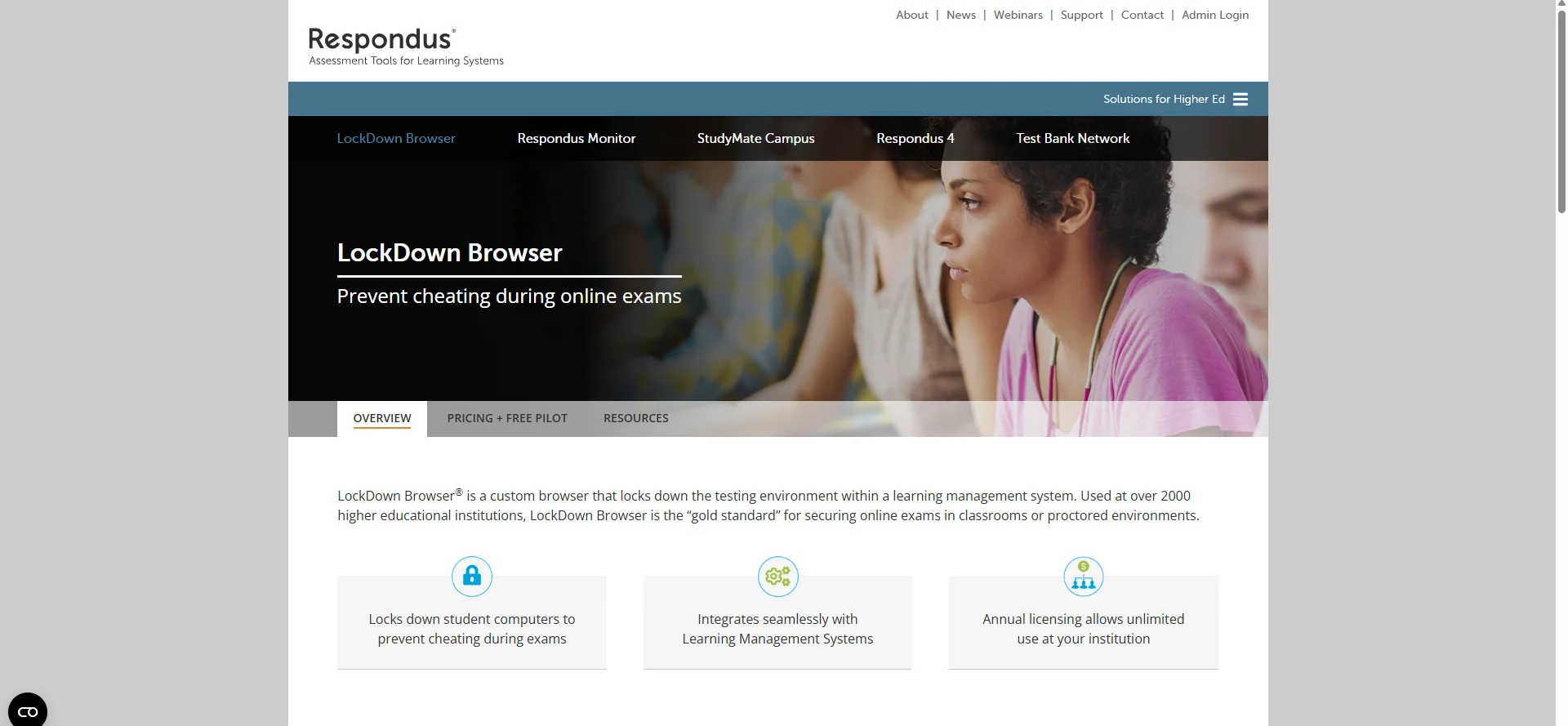
The Formative Lockdown Browser is powered by a company called Respondus. It's a custom browser that creates a locked-down testing environment specifically for secure Formative assignments.
When your teacher turns it on for an assignment, you can't open new tabs, switch to other apps, take screenshots, copy content outside the assignment, or navigate to any website the teacher didn't specifically include. You're basically locked into that one assignment until you submit.
The whole point is academic integrity. From what I saw, it also flags things like if the same account logs in from multiple devices at the same time, or if you try to swipe away and exit without submitting.
Does Your School Actually Have This?
Here's the thing. The Lockdown Browser is not available to all Formative users. It's a paid add-on that only schools and districts with a School or District license can purchase and activate.
If your teacher assigned a secure exam and you're being asked to use the Lockdown Browser, your school has it. If you've never seen this prompt before, your school probably doesn't have the add-on at all.
The way you know for sure is simple. If the assignment shows a prompt asking you to open or install the Lockdown Browser when you click it, it's active. If it just opens like a normal Formative, your school isn't using it.
How Students Actually Log In Through Lockdown Browser
This is the part that caused my classmate's confusion. The login process is slightly different from normal Formative access and it catches people off guard.
When you open a Formative assignment that requires Lockdown Browser, you'll see a prompt telling you to open the Lockdown Browser app. If it's already installed on your device, clicking that prompt launches it automatically.
Inside the Lockdown Browser, you then log into your Formative account the same way you normally would. Google SSO, Microsoft, Clever, or email and password. Nothing about your actual login credentials changes. The Lockdown Browser is just the container you're logging into Formative from.
 Installing Lockdown Browser Before Your Test
If the browser isn't on your device yet, the assignment prompt will ask you to download it first. Here's where to get it depending on what you're using.
For Windows, there's a setup .exe file you download and run through a standard install wizard. For Mac, there's a .pkg file that works the same way. For iPad, it's available through the Apple App Store by searching for Lockdown Browser by Respondus.
For Chromebooks, it's a Chrome extension rather than a full app. If your school manages your Chromebook, the IT admin would have already pushed it to your device and you shouldn't need to install anything yourself. If it's your personal Chromebook, you install it directly from the Chrome Web Store.
The Error Message at Login: What It Means
Here's something I see come up constantly. Some students on Chromebooks get an error saying the action cannot be taken in a secure environment when they try to log in or sign up from inside the Lockdown Browser.
From what I saw, this is almost always a cookies issue. Look for the Lockdown Browser extension icon in your Chrome toolbar, click it, and select the option to clear cookies. After clearing cookies, log out completely and restart your device.
If that doesn't fix it, clear your cache and cookies directly from Chrome's browser settings, restart, and try again. That combination resolves it in most cases.
What You Can and Can't Do Inside the Lockdown Browser
Let me break this down clearly because there are a few things students don't expect.
You cannot open new tabs. You cannot switch to another app or browser window. You cannot take screenshots or screen record. You cannot copy text from the assignment and paste it anywhere outside.
What you can still do is use any links or embedded materials your teacher specifically added to the assignment. The level of access to those links depends on how your teacher set the security level.
You can also still message your teacher through the in-app messaging system while inside the Lockdown Browser. That feature stays active so you can ask a question if something is unclear during the exam.
Also Read: Formative Student Login: Full Guide to Get In Without the Headache
What Is the Quit Password and When Do You Need It
Here's the part that comes up in exam emergencies. The Quit Password is a code your teacher sets that lets a student exit the Lockdown Browser without submitting the assignment.
You'd use this if something goes wrong with your device mid-exam, or in a genuine emergency where you need to leave the test environment immediately. To use it, click the small "i" button in the top left menu inside the Lockdown Browser, select Proctor Exit, and enter the password your teacher gives you.
Your teacher controls this. You don't have the password yourself unless your teacher shares it with you in the moment. If you're stuck inside the Lockdown Browser and can't exit, ask your teacher for the Quit Password directly.
The Lockdown Browser Won't Launch: What to Try
This is the most common issue beyond the login error. You click the assignment, something starts to load, and then nothing happens or you get a blue loading screen that just sits there.
First thing to try is clicking the Lockdown Browser extension icon in your Chrome toolbar and selecting Reload. Then try launching the test again. From what I saw, that alone fixes a large portion of launch failures on Chromebooks.
If that doesn't work, click the extension icon again and run the Check System option. It will tell you if any required domains are being blocked by your school's network. If something shows a red X, that's a network-level issue your IT team needs to resolve, not something you can fix yourself.
The Chromebook White Screen Problem
Some students on school-managed Chromebooks see a white screen when trying to launch Formative inside the Lockdown Browser. This one is specifically a school IT issue related to an outdated security extension called Securly.
I want to be real with you here. There's nothing a student can do to fix this one on their own. You need to tell your teacher immediately so they can escalate to the IT admin. The fix involves updating a Chrome extension on the school's network side.
If you're heading into an exam and this happens, screenshot the error, message your teacher through whatever channel your school uses, and let them know the white screen issue is preventing access. Document the time it started so the teacher has proof you tried.
If Your Chromebook Becomes Completely Unresponsive
There's a specific situation that happens on older Chromebooks with broken power buttons. After submitting a test, some Chromebooks get stuck in Lockdown Browser mode because the only way to exit requires pressing the physical power button and if that button is broken, there's no software workaround.
From what I saw, the only fix in that case is pulling the battery, which is something the school IT department handles. This doesn't affect anything outside of the Lockdown Browser mode. But it's worth flagging to your teacher before test day if you know your power button doesn't work.
Zoom and Remote Proctoring Inside Lockdown Browser
Here's something most students don't know about. Teachers can enable a Zoom permission inside the Lockdown Browser settings for remote testing situations.
If your teacher needs to proctor your exam over Zoom while you're in the Lockdown Browser, they can toggle that on so Zoom runs alongside the secure browser. That means you can be on camera for the proctor while still being fully locked into the assignment.
If Zoom keeps getting blocked or closed when you open the Lockdown Browser, your teacher may not have that setting enabled. Let them know you need it turned on before the exam starts.
One Thing About the Chromebook Kiosk App
If you used an older version of Formative's Chromebook testing setup that ran through a kiosk mode app, that version was replaced in July 2024. The new version runs as a Chrome extension instead.
If your school is still on the old kiosk app and things aren't working, that's why. The school admin needs to install the new Chrome extension and remove the old kiosk setup. That's entirely on the admin side but worth knowing about so you can pass that information along if needed.
FAQs
What is the Formative Lockdown Browser?
It's a secure browser powered by Respondus that locks students into a Formative assignment, blocking tabs, apps, screenshots, and outside browsing until the exam is submitted.
How do I log into Formative through the Lockdown Browser?
Open the Lockdown Browser when prompted by the assignment, then log into your Formative account the same way you normally would using Google, Clever, Microsoft, or email and password.
Why does Formative say the action can't be taken in a secure environment?
This is a cookies issue on Chromebooks. Click the Lockdown Browser extension icon in Chrome, clear cookies, log out completely, restart your device, and try again.
What do I do if I'm stuck inside the Lockdown Browser and can't exit?
Ask your teacher for the Quit Password, click the "i" button in the top left menu inside the browser, select Proctor Exit, and enter the code your teacher gives you.
Why is my Lockdown Browser showing a white screen on my Chromebook?
This is a school IT issue caused by an outdated Securly extension. There's nothing you can fix on your end. Alert your teacher immediately so they can escalate it to the IT admin.