
My younger sister came to me last Tuesday panicking. Her teacher had assigned something on Formative and she had a quiz due in twenty minutes. She kept clicking the wrong login button and landing on a screen that didn't recognize her account. I sat down with her for five minutes and walked her through the whole thing.
Figured I'd write it all down properly. Here's exactly how the Formative student login works, what the different methods mean, and how to fix every common issue you're probably running into.
First Thing: What Even Is Formative?
Formative, also known as goformative.com, is a web-based platform teachers use to create live quizzes, assignments, and assessments that students complete in real time. Teachers can see responses as students are submitting them.
It's used in a lot of schools right now because it works on any device. Phone, tablet, Chromebook, laptop. No app install required. You just open a browser and go.
The platform is now owned by Newsela and is officially accessible at app.formative.com or through formative.com.
The Two Ways to Log In as a Student
Here's the thing. There isn't just one way to log into Formative and that's actually what confuses most people. You have two main options and which one you use depends on how your school is set up.
The first is Single Sign-On, which most people call SSO. This means you log in using an account your school already gave you, like Google, Microsoft, or Clever. You click one button, it recognizes your school account, and you're in.
The second is email and password. This is a separate Formative-specific login that someone created for you or you set up yourself. It doesn't use your school account at all.
Both work for students. The trick is knowing which one your school set you up with.
How to Log In With Google, Microsoft, or Clever
If your school uses Google Classroom, you're almost certainly logging in with Google. Same idea for Microsoft or Clever setups.
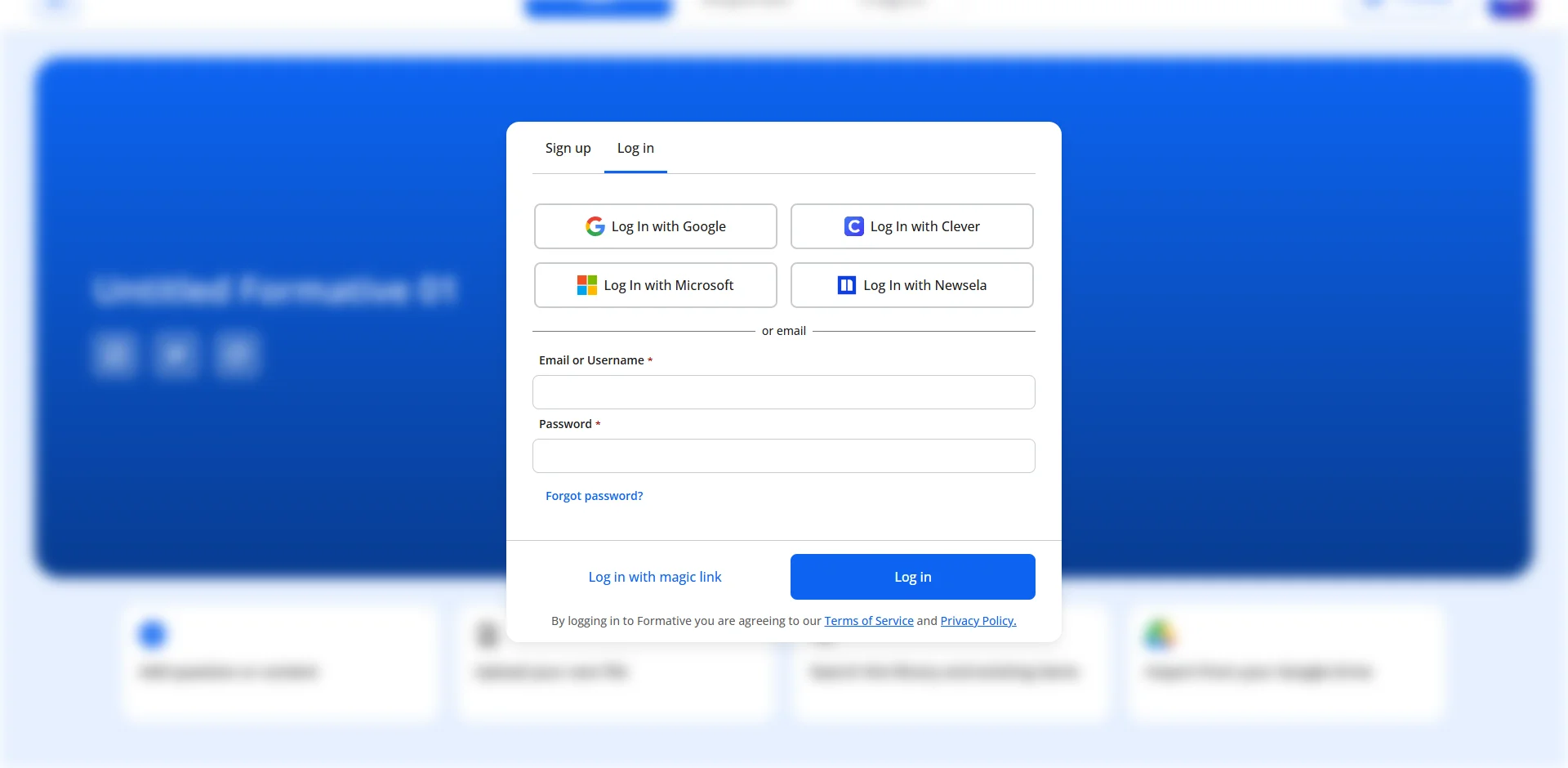
Go to app.formative.com/login and you'll see buttons for each SSO option at the top of the page. Click the one that matches your school account, and it pulls your credentials from there automatically.
The thing I see trip people up here is being logged into the wrong Google account on their browser. If you have a personal Gmail open and a school Gmail, the SSO will grab whichever one is active. Make sure you're on your school account before clicking that button.
 How to Log In With a Join Code
This is the method a lot of students use when their teacher shares a direct link or a six-character code. No full account setup needed in most cases.
Go to app.formative.com/join and enter the join code your teacher gave you. That's it. You're in the specific assignment without even needing to navigate the full dashboard.
From what I saw, some teachers share a direct URL that has the join code already embedded. If your teacher sent you a link, just click it and it'll take you straight to the assignment page.
The Email and Password Method
If your school doesn't use SSO, or your teacher set up your account manually with a username and password, this is your path.
Go to app.formative.com/login, scroll past the SSO buttons, and type your email or username in the field below. Enter your password and click the blue Login button.
One thing worth knowing. When you type your password, type it manually. Don't copy and paste it from somewhere. Copying can pull in hidden characters that make the password fail even when it looks correct. I know that sounds weird but it's a documented issue and I've seen it cause problems more than once.
The Magic Link Option: The Hidden Gem Most Students Miss
Here's the part that almost nobody knows about. Formative has a login option called Magic Link at the bottom of the login page.
You click it, enter your email address, and Formative sends you a one-time login link directly to your inbox. Click the link and you're in. No password required at all.
From what I saw, this is genuinely useful when your SSO is being blocked by school network settings or when you simply can't remember your password and don't have time to go through a full reset. Check your spam folder if the email doesn't show up within a minute or two.
Forgot Your Password? Here's the Exact Process
If you signed up to Formative with an email and password combination, resetting it is quick.
Go to app.formative.com/login and click the Forgot Password link. Enter the email address you used when you signed up and click Submit. Formative sends a reset link to your inbox. Check spam if it doesn't arrive.
Here's the important part though. If you log in with Google, Microsoft, or Clever, you cannot reset your Formative password through Formative. Those passwords are managed by those systems. You'd need to reset your Google or Microsoft password through your school's IT admin instead.
Also Read: 10 Best Video Downloaders for Mac and Windows in 2026
If You Use a Username Instead of an Email
Some teacher-created student accounts use a plain username rather than an email address. If that's your situation, the forgot password flow on the login page won't work for you.
You have to reach out to your teacher directly and ask them to reset it. Teachers can reset student passwords from the Classes tab in their account. They go into the class, check the box next to your name, and select Reset Password from the menu.
Your teacher will then give you a new password and you're back in. It's a quick process on their end.
The SSO Loop Problem and How to Fix It
Here's one I see come up constantly. You click the Google or Microsoft button, it spins for a second, and then sends you right back to the login screen. Nothing happens. You try again and the same thing repeats.
This is almost always a browser issue. Here's what to try in order.
First, open an incognito or private window and try logging in from there. That clears cookies and extensions from the equation immediately. If it works in incognito, your regular browser has cached something that's blocking the authentication.
Second, clear your cache and cookies from your browser settings. After clearing, close the browser completely, reopen it, and try again.
Third, make sure third-party cookies are allowed in your browser. Formative's SSO relies on them and some browsers or school network settings block them by default.
If none of those work, the issue is likely a school-level network filter or firewall blocking Formative. That's when you need to loop in a teacher or the school IT contact because it's outside what we can fix from the student side.
SSO Says You Don't Have an Account But You Know You Do
This one is almost always the wrong Google or Microsoft account being active on the browser.
Check the top right corner of your browser and confirm which account is logged in. If you see your personal email instead of your school email, that's the issue. Log out of the personal one, log in with your school credentials, and try the Formative SSO button again.
On a shared device like a school Chromebook or library computer, someone else's profile might be active. Switch to your own profile before attempting to log in.
Logging In Through Canvas, Schoology, or Another LMS
A lot of schools embed Formative inside Canvas, Schoology, or Blackbaud. If your teacher shared a Formative assignment through one of those platforms, you access it directly through the LMS link.
From what I saw, when this setup is working properly you don't even see a Formative login screen. The integration passes your credentials automatically and opens the assignment directly.
If it's asking you to log in again from inside Canvas or Schoology, there's likely an integration issue on the school admin side. Your teacher or the school IT admin needs to confirm the connection between the LMS and Formative is properly set up and hasn't expired.
Linking Multiple Login Methods to One Account
Here's something useful if your school uses both Google and Clever, or if you ever want to be able to log in from multiple methods. Formative lets you link more than one SSO provider to the same account.
Once you're logged in, click My Account on the left side menu and select Account Info. You'll see all the login methods currently connected to your account and an option to Link new ones. Click Link next to whatever method you want to add, enter the credentials for that service, and confirm.
That way if your Clever isn't working on a particular device, you can still get in through Google. It's a small thing but it's saved me from being locked out before.
Changing Your Password When You Still Know the Current One
If you want to update your password proactively rather than waiting until you forget it, here's how.
Log into your account, click My Account on the left side menu, and select Account Info from the dropdown. Click Change Password, enter your current password, then type in the new one and click Update Password. You'll be asked if you want to log out of all current sessions or just stay logged in.
I'd recommend doing this every few months if you use the email and password login method. And save the new one somewhere secure like a password manager rather than just in your head.
What Happens If None of This Works
From what I saw, if you've tried every troubleshooting step and you still can't get in, the official support path is to submit a request at formative.com/support.
When you do, include a screenshot of the error you're seeing and describe exactly which login method you tried. That gives the support team what they need to actually diagnose the problem instead of sending you a generic response.
For most login issues though, the steps in this guide cover everything you're likely to run into. Browser cache, wrong account, wrong login method. Those three things cause probably 90% of Formative login problems we see.
FAQs
What is the Formative student login URL?
Go to app.formative.com/login to access the main student login page with all available sign-in methods.
How do I log into Formative with a join code?
Go to app.formative.com/join and enter the six-character code your teacher gave you to access the assignment directly.
Why does my Google login keep sending me back to the Formative login screen?
Clear your browser cache and cookies, allow third-party cookies in your browser settings, and try again in a private window.
Can I log into Formative without a password?
Yes. Use the Magic Link option at the bottom of the login page. Formative sends a one-time link to your email and you click it to get in.
What do I do if I forgot my Formative password?
Click Forgot Password on the login page and enter your email. If you use a username without an email, ask your teacher to reset it from their Classes tab.