
Someone searching "Vinesign login" is almost always one of two completely different people. Either they're a business admin trying to send a contract, or they're a client who just got a text with a signing link and has no idea what Vinesign even is.
Those two paths need completely different instructions, and most guides mash them together. Here's the complete breakdown for both sides.
What Vinesign Actually Is
Vinesign is an electronic signature tool designed to make document signing simple and fast. It's part of a broader platform by Filevine, and it lets users, whether individuals or businesses, send documents for signature and let recipients sign them on their phone or computer.
In short, it replaces traditional pen-and-paper signatures with a secure, convenient online method that works entirely through a browser.
 What the Platform Actually Includes
Here's the full feature set that makes it functional for both senders and signers.
Feature | What It Does |
|---|---|
Document upload | Upload PDFs, DOCs, or use pre-built templates for signing |
Multiple signers | Send to multiple recipients simultaneously |
Device compatibility | Works on desktop, tablet, and mobile devices |
Secure links | Documents sent via encrypted email or SMS links |
Tracking and notifications | Monitor document status: sent, viewed, signed |
Certificate of completion | Provides validation certificates for legally binding signatures |
No installation required | Sign directly in a browser, nothing to download |
That certificate of completion feature is worth understanding upfront, since it's the actual mechanism that makes an electronically signed document hold up legally, not just a formality tacked onto the end.
Why Businesses Actually Switch to This
A few concrete advantages explain why organizations move away from paper entirely.
Time savings eliminate the print, scan, and courier cycle completely, with everything handled online from start to finish. Convenience means signers get a link via email or text and can sign on any device, anywhere, without scheduling an in-person meeting.
Legal validity comes from the validation certificate generated once a document is fully signed, making it legally acceptable in the same way a wet-ink signature would be. Organization improves since digital storage and tracking eliminate lost paperwork and make follow-ups genuinely easier to manage. Flexibility across common document formats and templates makes it suitable for contracts, agreements, forms, and nearly anything else requiring a signature.
Understanding the Two Types of Vinesign Login
This is the distinction most guides blur together, and it's the most important thing to get right before following any instructions.
Document senders and administrators are the ones uploading documents, setting up the signing process, and sending out links to recipients. Signers or clients are the people who receive a link by email or text and simply need to open it, review the document, and apply their signature.
Both types technically "log in" or access a Vinesign link, but the actual workflow and what you're logging into differs completely depending on which role you're in.
If You're a Signer: The Actual Steps
If you received a document to sign through Vinesign, here's exactly what happens.
Step 1: Get Your Link
You'll receive a signing link through email, SMS, or both, depending on how the sender configured the request.
Step 2: Open the Link
Click it from any device, phone, tablet, or computer. It takes you directly to a Vinesign page displaying the document, no separate account creation required.
Step 3: Review the Document Carefully
Read through everything before signing, checking that all the details are correct.
Step 4: Apply Your Signature
Depending on what's offered at that moment, you can draw your signature, type it, or upload an image of it.
Step 5: Submit the Signed Document
Once submitted, Vinesign marks it as signed, and you or the sender typically receive a confirmation or certificate.
Step 6: Download or Save if Needed
You can keep a copy of the signed document for your own records after completion.
There's genuinely no installation required for this side of the process, which is exactly why it works well for clients who just need to sign something once and move on.
If You're a Sender or Admin: The Actual Steps
If you're the one sending documents out for signature, the workflow looks different.
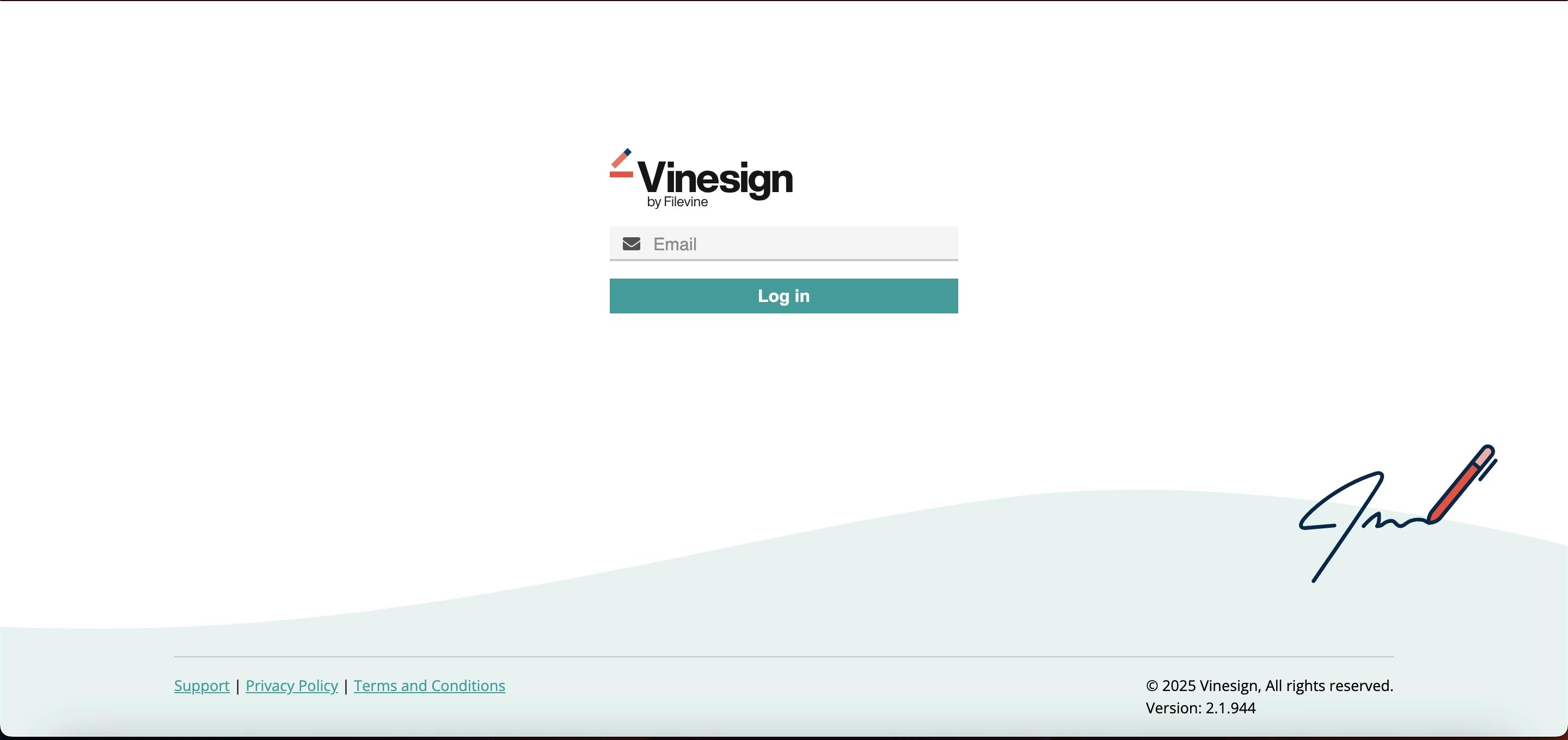
Step 1: Log Into Your Account
Sign into your Filevine or Vinesign account, depending on how your organization has it configured.
Step 2: Upload or Select Your Document
Upload a PDF, DOC, or DOCX file, or select a pre-saved template if you're sending something recurring like a standard NDA.
Step 3: Configure Your Signers
Add each recipient's contact information, email or phone number, so Vinesign knows exactly where to send the signing link.
Step 4: Send the Request
Vinesign automatically delivers the link to recipients via email or SMS based on your configuration.
Step 5: Track Status
Use the dashboard to monitor who's viewed, signed, or still has a pending request, without needing to manually follow up with each recipient individually.
Step 6: Manage Signed Documents
Once everything's signed, you receive the validated document and certificate, which you should store securely for your records.
Where This Actually Gets Used
The use cases span far more industries than people initially expect.
Business contracts get sent to clients, partners, or vendors without printing or mailing anything. Employment documents, including offer letters, NDAs, and HR forms, streamline new employee onboarding entirely. Legal agreements let law firms manage power of attorney forms and court documents efficiently across a caseload.
Real estate transactions let buyers, sellers, and agents sign purchase agreements and leases remotely. Financial services use it for loan documents and account approvals. Educational institutions handle consent forms and enrollment documents. Healthcare providers collect patient consent forms securely online. Freelancers and agencies manage contracts and project approvals without delays waiting on physical signatures.
Common Issues and How to Fix Them
Here's the practical troubleshooting reference for both sides of the platform.
Issue | Likely Cause | Fix |
|---|---|---|
Can't access the login page | Wrong URL or network issue | Verify the URL, refresh, or try a different browser or network |
Forgot password | Lost or expired credentials | Click Forgot Password on the login page and reset via email |
Document won't load | Browser compatibility or slow connection | Use a current version of Chrome, Edge, Safari, or Firefox and check your connection speed |
Unable to sign | Fields not activated or document errors | Contact the sender or support to confirm required fields are properly enabled |
Link expired | Vinesign links are time-limited | Request a fresh link directly from the document sender |
That expired link issue catches a lot of signers off guard specifically. If you're a signer and it's been more than a few days since you received the original email, request a new link before assuming something's broken on your end.
Is Vinesign Actually Secure and Legal
Vinesign aims to meet legal requirements for e-signatures. The system generates metadata and a validation certificate once a document is fully signed, making it legally binding in the same way a physical signature would be.
Since signers access documents through a secure link via email or SMS rather than a shared physical copy, there's meaningfully less risk of tampering compared to manual signatures, and tracking and managing signed documents becomes significantly easier for everyone involved.
For the specific federal legal framework that makes electronic signatures enforceable in the United States, the ESIGN Act, administered by the FTC, is the actual law platforms like Vinesign are built to comply with, worth knowing if your organization's legal team ever asks why an e-signature holds up the same as ink on paper.
Vinesign vs Traditional Paper Signing
Category | Vinesign | Traditional Paper |
|---|---|---|
Speed | Instant online signing | Slow, requires printing, signing, scanning, mailing |
Accessibility | Sign from any device, anywhere | Must be physically present or mail documents |
Security | Encrypted with validation certificates | Risk of loss, forgery, or physical damage |
Tracking | Real-time status tracking | Manual tracking, harder to monitor |
Cost | Reduces printing and courier costs | Requires paper, ink, and courier charges |
Legal validity | Legally binding e-signature | Legally binding but slower to process |
The Access Pattern That Repeats Across Platforms Like This
If your organization handles multiple document workflows across different tools, the login and access pattern here mirrors what shows up across most modern SaaS platforms handling sensitive or time-limited data. Our guide to Corjl login covers a nearly identical link-based access model for a completely different use case, editable design templates rather than legal documents, but the same expired-link and email-mismatch troubleshooting logic applies almost identically.
FAQs
What is Vinesign login?
The process of accessing Vinesign to send or sign documents electronically, either as an administrator or as a signer through a direct link.
How do I log in to Vinesign?
Visit the login page and enter your email and password if you're a sender, or access your document directly through the link sent via email or SMS if you're a signer.
Do I need to install anything to use Vinesign?
No, it works directly in web browsers on desktop or mobile without any required installation for signers.
Is Vinesign secure?
Yes, it uses secure links, encryption, and validation certificates to keep documents protected and legally binding.
What do I do if my Vinesign link expired?
Request a new link directly from the person or organization that originally sent you the document.